
 Book a migration call
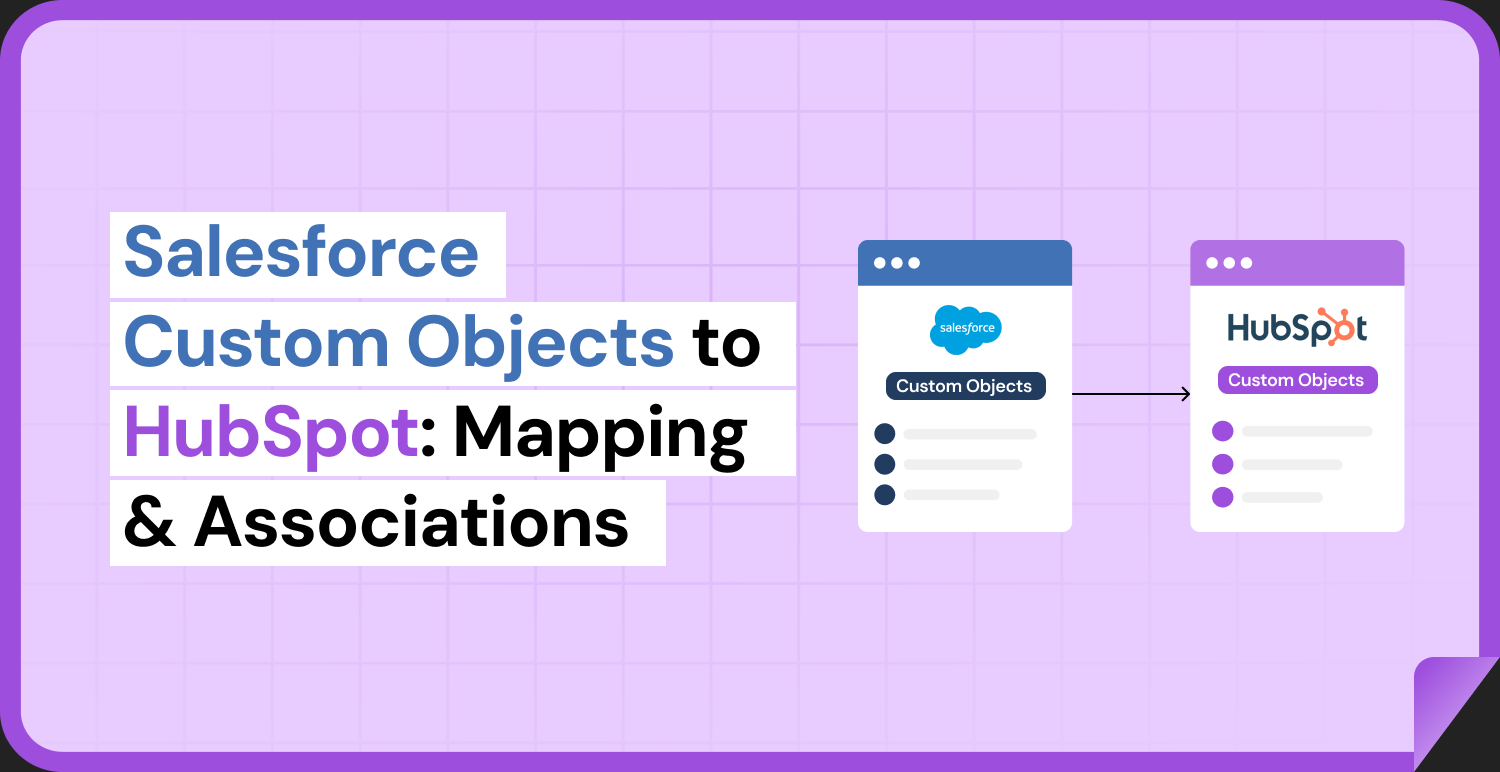

Standard objects are the more straightforward part of a Salesforce to HubSpot move. Accounts become companies, contacts stay contacts, and opportunities become deals. The custom objects are where the planning is. They hold the data that is specific to your business, they have relationships that only you defined, and HubSpot’s Smart Transfer does not move them.
This guide covers Salesforce custom object migration to HubSpot from the first decision to the final check: whether each object belongs in HubSpot at all, how fields and relationships translate, and how to confirm the result before anyone starts using it. It also shows how SuprSwitch, SuprDense’s CRM migration platform, handles each step through its four phases: Schema Analysis, Mapping Logic, Pilot Validation, and Final Execution.
How Salesforce Custom Objects Work
A custom object is a table your Salesforce admins built for data the standard objects do not cover. What matters for migration is how it connects to other objects. Salesforce has three ways to do that:
- Lookup. Links two objects. The lookup field is optional by default, and what happens on delete is set per field: the lookup is cleared (the default), the delete is blocked, or the delete cascades.
- Master-detail. A parent-child link in which the master controls the detail record. Deleting the master deletes its detail records, the detail record’s owner is set to the master’s owner, and it inherits the master’s sharing and security settings. By default a detail record cannot be moved to a different master.
- Many-to-many. Built with a junction object that has two master-detail fields, one to each side.
Salesforce also has roll-up summary fields, which summarize the detail records of a master-detail relationship on the master record. They matter later, because a roll-up has no source data to copy: it is a result that HubSpot has to calculate again.
These differences decide what you have to rebuild. A lookup is only a link. A master-detail relationship also carries delete, ownership, and sharing behavior, and a junction object may hold data of its own. A HubSpot association is a link between two records, so any of that extra behavior you still need has to be designed on purpose.
Check HubSpot Object Compatibility
Before you map anything, confirm three things.
- Your plan. Custom objects are available with Enterprise subscriptions. The number of custom objects and properties you can have depends on your subscription, and the Limits tab in your data model shows your own numbers. Association labels need Professional or Enterprise.
- The migration route. Smart Transfer does not support custom objects. Custom object records get in through a file import, HubSpot’s Salesforce custom object sync, or the API. The sync needs Enterprise too, and the custom object must already exist in HubSpot before you set it up.
- The object itself. Not every Salesforce custom object needs a HubSpot custom object.
SuprSwitch takes the API route. It maps any field or object that lives in Salesforce, and its contextual object mapping rebuilds custom objects as HubSpot custom objects. It does not change HubSpot’s plan rules: the objects are created in your account, so the Enterprise requirement and the limits below still apply.
Then check your design against HubSpot’s limits. The figures below come from HubSpot’s own documentation, listed in the references at the end, so confirm them against your own account before you commit to a design.
| Limit | What the catalog lists |
|---|---|
| Custom object definitions and records | Depends on your Enterprise subscription. Check the Limits tab in your data model for your own numbers. |
| Custom properties | Depends on your subscription. Check the Limits tab in your data model. |
| Values per picklist property | 1,000[1] |
| Associations for a custom object | 9 defined associations between each custom object type and other object types[1] |
| Associated records per record | 250,000 per association type on paid accounts[1] |
| Association labels | Up to 50 labels per object pair, on Professional and Enterprise[2] |
| Standard sandbox | Up to 200,000 records per object type can be imported, on Enterprise[3] |
For each Salesforce custom object, choose one of three outcomes:
| What the Salesforce object is | HubSpot option | Check first |
|---|---|---|
| A thing with its own records, fields, and relationships, such as a subscription, an asset, or a project | A HubSpot custom object | Definitions, records, and associations fit the limits above |
| Extra detail on one standard record, such as a few fields on an account | Properties on the matching standard object | Whether one record can hold the detail |
| Data nobody uses or reports on | Leave it out, or keep an archive | Who signs off on dropping it |
Rebuilding every Salesforce object as a HubSpot custom object can leave you with a model that is harder to use and to report on. Decide object by object.
If you are still planning the wider move, our Salesforce to HubSpot migration page covers the standard objects and how SuprSwitch handles the migration.
Inventory Fields and Relationships
Build the inventory from Salesforce before you open HubSpot. For every custom object you plan to keep, record:
- The number of records, which you will use in the final check and to compare with your HubSpot record limit.
- Every field with its type, whether it is required, and whether anyone uses it. Compare the total with the custom property limit shown in your Limits tab.
- For every picklist, the values actually stored in records, not only the values in the setup list. Salesforce does not enforce the value list of an unrestricted picklist when data is created through the API, so records can hold values that are not on the list.
- Whether multicurrency is on. If it is, each record has its own currency code, and the currency fields on that record are expressed in that currency.
- Every relationship: the related object, the type (lookup, master-detail, or junction), and the direction. Compare the count per object with the 9 associations HubSpot allows for a custom object[1].
- Who owns the records and how many owners there are.
Keep it as a single mapping sheet with a decision column for each field and relationship: map, convert, rebuild, or drop. Every later step works from this sheet, and it is the document you send for sign-off.
SuprSwitch’s Schema Analysis phase builds much of this inventory for you. It scans the Salesforce org and surfaces every custom field, record count, property type, and picklist value, and flags duplicates, empty required fields, and broken associations before any data moves.
Map Salesforce Fields to HubSpot Properties
Most fields have a clear HubSpot equivalent. This table shows the usual choices, using the property types HubSpot documents.
| Salesforce field | HubSpot property | Watch for |
|---|---|---|
| Text | Single-line text | HubSpot allows up to 65,536 characters in a property[4] |
| Long text area | Multi-line text | Same limit; line breaks are not supported in some tools |
| Rich text | Rich text | Up to 64 KB per value, including images[4] |
| Checkbox | Single checkbox | Import values are True or Yes, False or No |
| Picklist | Dropdown select or radio select | Import values must match an option’s label or internal value. HubSpot lists 1,000 values per picklist property[1] |
| Multi-select picklist | Multiple checkboxes | Salesforce stores selections separated by semicolons, and HubSpot imports them the same way. The options must already exist in HubSpot |
| Date | Date picker | HubSpot accepts day-month-year, month-day-year, and year-month-day[5]. Keep one order in the file |
| Date and time | Date and time picker | Without a time the value defaults to midnight[5]. Records display in the user’s device time zone |
| Number | Number (formatted or unformatted) | Check scale and precision against the Salesforce field |
| Currency | Number (currency) | Use a currency HubSpot accepts. With multicurrency, keep the Salesforce currency code in its own property |
| Percent | Number (percentage) | HubSpot imports either 25% or .25[5] |
| Check formatting in the file before import | ||
| Phone | Phone number | Salesforce phone values can include letters. HubSpot expects +[country code][number], with ext for extensions |
| URL | URL | Check formatting in the file before import |
| Auto number | Single-line text | Keep the existing numbers so references stay valid |
| Address, geolocation | One property per component | These hold several values in one field |
| File | File property | Up to 10 files per property[4] |
| Formula | Calculation property, or a plain value | Calculation properties need Professional or Enterprise |
| Roll-up summary | Rollup property, or a plain value | Rebuild the logic and compare results |
| Lookup or master-detail | An association, not a property | Covered in the next section |
| Salesforce record ID | A custom text property with unique values | Store the 18-character ID. It is case-safe, and the 15-character version is case-sensitive[6] |
Three decisions come up on almost every project.
The primary display property. Every HubSpot custom object needs one. It names each record and is required to create a record. Pick a field that every Salesforce record has, and turn on the unique values option if it should never repeat. The internal name of the object cannot be changed after it is created, so settle names before you create it.
The Salesforce ID. Store it on every record as a property with unique values, using the 18-character form. Salesforce treats the 15-character ID as case-sensitive, so a tool that ignores case can treat two different records as the same one, and Salesforce recommends the 18-character ID in all API calls[6]. HubSpot can use a custom unique-value property to match custom object records, which lets you re-run an import as an update and match parents to children later. Without a unique identifier, an import creates new records and duplicates follow.
Picklists. Clean the values before the import, starting with the values found in the records. If two Salesforce values mean the same thing, merge them in the mapping sheet and not in the HubSpot property afterwards.
With SuprSwitch. In the Mapping Logic phase, SuprSwitch’s transformation layer maps Salesforce objects and fields to the HubSpot data model. If a matching object or property does not exist yet, you can create it from SuprSwitch in a single click. Keep each field on a property with the same data type, because a number stored as text can no longer be reported on.
Plan Associations and Record Ownership
Associations
Associations must be defined before records can be linked. You create them in the data model, between the custom object and the objects it relates to, and then add labels to describe the relationship. Labels need Professional or Enterprise, and they have to exist in HubSpot before an import uses them. Remember the limit of 9 defined associations for each custom object type[1] when you design the model.
Map each Salesforce relationship like this:
- Lookup. Becomes an association. If the lookup identified a role, such as the primary contact, create a label for it.
- Master-detail. Also becomes an association. Decide separately what to do about the behavior it carried: who owns the child records, who can see them, and what should happen to them when the parent is removed.
- Junction object. HubSpot associations can link many records on each side, so a junction is not needed just to connect two objects. Keep it as its own custom object only if the junction record holds data, such as a role, a date, or a quantity, and associate that object with both sides.
You can also set limits on associations, both overall and per label, up to 10,000 for a custom limit[7]. Setting limits needs Super Admin permissions. If an overall limit is one, it takes precedence over any label limit, so a label set to allow many still permits only one.
Loading associations
Load parents before children. In a file import, associations can be created in one file, or across files that share a column which identifies the same record in both. This is where the stored Salesforce ID earns its place. Each row needs a unique identifier for each record. To link one record to several others, repeat the identifier on several rows, or put the related identifiers in one cell separated by semicolons. Without identifiers the import creates duplicate records instead of linking them. Several labels in one cell are separated by semicolons, and imported labels are added to the labels a pair of records already has.
SuprSwitch’s association integrity mapping takes care of this ordering. It preserves one-to-one and labeled relationships as records move, so child records arrive linked to the right parents.
If you use HubSpot’s Salesforce custom object sync, know its limits. Lookup fields cannot be mapped as fields, so relationships go through associations. Associations only sync between objects that already sync, so company sync has to be on before accounts can be associated with a custom object. A custom object cannot sync to both Salesforce contacts and leads.
Ownership
Custom object records can have an owner. To set owners through an import, include an owner column with each user’s name or email address and map it to the owner property. The user has to exist in HubSpot with a seat and permission to view that object, so create or assign users first. Imported assignees do not get a notification. For a Salesforce detail record whose owner followed its master, decide whether to give it the parent’s owner explicitly in the file.
SuprSwitch’s ownership transfer engine resolves records owned by deactivated Salesforce users before anything moves, and users whose email address matches in both systems are mapped automatically.
Handle Unsupported Fields and Data Types
Some fields do not fit a single HubSpot property type. Do not drop them silently. For each one, make an explicit decision and record it in the mapping sheet.
| Case | Options | Note |
|---|---|---|
| Formula fields | Recreate as a calculation property, or import the current value as a plain property | Formula fields are read-only in the Salesforce API. A plain value stops updating |
| Roll-up summary fields | Recreate as a rollup property, or import the current value | Compare the result with Salesforce after the load |
| Lookup fields | Create an association | Native sync cannot map lookup fields |
| Text longer than the property limit | Split, shorten, or store as a file or note | Single and multi-line text hold up to 65,536 characters[4] |
| Encrypted text | Decide whether the value should move at all | Salesforce encrypted text holds up to 175 characters[8] |
| Compound fields | Map each component to its own property | Address and geolocation hold several values in one field |
| Time-only values | Combine with a date, or store as text | HubSpot documents date and date and time pickers |
| Attachments and files | A file property, or a separate transfer | A file property holds up to 10 files, and uploads to a record are limited to 50 MB on paid accounts[4] |
| Required fields with no value | Set a default before import | The primary display property is required to create a record |
The goal is a record of what changed and why. When a user asks months later where a field went, the mapping sheet should have the answer.
Test the Mapping With Sample Records
Run the mapping on a small set of records before the full load. If you have an Enterprise plan, use a standard sandbox, where HubSpot lets you import up to 200,000 records per object type[3]. Record IDs in a sandbox differ from production, so a test proves the mapping and not the IDs.
Choose records that exercise the edge cases, not just typical ones:
- A record for each relationship type, including a junction record with its own fields.
- A record with the longest text, the most picklist options, and empty required fields.
- A parent with many children, and a child whose parent is not in the sample.
- Records with date and time values, percentages, and currency, including a record in a different currency if multicurrency is on.
- A record whose multi-select picklist has several values selected.
Then check three things. Open each test record in HubSpot and compare it with Salesforce field by field. Open the associated records from both sides. Finally, run the same file again, matched on the Salesforce ID, and confirm it updates the records instead of creating duplicates. Fix the mapping sheet first, and only then change the import.
This is SuprSwitch’s Pilot Validation phase. A representative sample moves first, and the run checks relational integrity, field truncation, and association chains before the full load. If the mapping changes, the sample runs again.
Validate Records After Migration
Matching record counts is a start, not proof. A migration can have the right number of records and still have broken links or wrong values. Check each of these:
During Final Execution, SuprSwitch’s real-time record validation flags any record that does not appear in HubSpot within the expected window, and its retry mechanism re-runs failed records without restarting the whole job. Its no-storage architecture means your Salesforce data is never held on SuprSwitch servers. The checks below then confirm the result independently.
| Check | What to compare | What a gap means |
|---|---|---|
| Record counts | Records per object in Salesforce and in HubSpot | Rows were skipped, rejected, or duplicated |
| Association counts | Links per relationship in both systems | Parents or children loaded in the wrong order, or the wrong key |
| Orphan records | Child records with no parent | A parent was missing from the load |
| Required fields | Records with a blank primary display property or other required value | A default was missed |
| Picklist values | Distinct values per property | A value did not match and was dropped |
| Multi-select values | Selections on a sample of records | An option was missing or split incorrectly |
| Currency | Amount and currency code on a sample of records | A currency was dropped or defaulted |
| Dates, numbers, percentages | A sample of values against Salesforce | A format or time zone changed |
| Calculated values | Calculation and rollup results against Salesforce formulas | The logic was rebuilt differently |
| Owners | Owner on a sample of records | A user was missing or mapped incorrectly |
| Duplicates | Records that repeat the same Salesforce data | A load ran without the identifier, or IDs were compared without case |
| Import files | Rows in each file against HubSpot’s per-file limit of 1,048,576 rows[5] | A file was truncated or split incorrectly |
Use a sample for the value checks and full counts for the volume checks. The CRM migration checklist covers the checks that apply to the whole project, including what to confirm before go-live.
Common Mapping Mistakes
- Copying the Salesforce model one to one. Some objects work better as properties on a standard object, and some should not move.
- Designing before checking the plan. Custom objects, labels, and calculation properties depend on your subscription.
- Importing before the object and associations exist. Both have to be defined first.
- Leaving out a unique identifier. Without one, a second run creates duplicates instead of updating.
- Mapping a lookup as text. The value arrives, but the link between the records does not.
- Loading children before parents. Load parents first so every child has a record to link to.
- Ignoring junction data. A role or date on the junction has nowhere to go on a plain association.
- Treating picklists as clean. Records can hold values that are not on the Salesforce list, so check the data and not only the setup.
- Ignoring HubSpot limits. Check definitions, properties, associations, and picklist values against the limits before you build.
- Trusting counts alone. Check links, values, and owners as well.
Conclusion
Mapping Salesforce custom objects to HubSpot comes down to a short list of decisions made early: which objects move, which become properties, how each relationship is represented, and what happens to fields that do not fit. Make them in a mapping sheet, test them on edge cases, and validate links and values, not only counts.
SuprSwitch is built around the same sequence. Its four phases move the hard decisions to the front, before live data touches HubSpot.
References
[1] HubSpot, Product & Services Catalog: Technical Limits. https://legal.hubspot.com/hubspot-product-and-services-catalog/technical-limits
[2] HubSpot Knowledge Base, Create and use association labels. https://knowledge.hubspot.com/object-settings/create-and-use-association-labels
[3] HubSpot Knowledge Base, Create a sandbox and deploy changes to production. https://knowledge.hubspot.com/account-management/deploy-sandbox-changes-to-production
[4] HubSpot Knowledge Base, Understand property field types in HubSpot. https://knowledge.hubspot.com/properties/property-field-types-in-hubspot
[5] HubSpot Knowledge Base, Format import files. https://knowledge.hubspot.com/import-and-export/set-up-your-import-file
[6] Salesforce Help, Locate the Unique ID of a Record in Salesforce. https://help.salesforce.com/s/articleView?id=000385008&language=en_US&type=1
[7] HubSpot Knowledge Base, Set limits for record associations. https://knowledge.hubspot.com/object-settings/set-limits-for-record-associations
[8] Salesforce Help, Classic Encryption for Custom Fields. https://help.salesforce.com/s/articleView?id=platform.fields_about_encrypted_fields.htm&language=en_US&type=5
Frequently Asked Questions
01 Can Salesforce custom objects be migrated to HubSpot?
Yes. They can move into HubSpot custom objects, or be folded into properties on standard objects. Smart Transfer does not support custom objects, so the records are loaded through a file import, the Salesforce custom object sync, or the API. SuprSwitch takes the API route and rebuilds them as HubSpot custom objects with their associations.
02 Do custom objects require a specific HubSpot subscription?
Yes. Custom objects are available with Enterprise subscriptions. The number of custom objects and records you can create depends on your subscription, and the Limits tab in your data model shows your own numbers. Association labels and calculation properties need Professional or Enterprise.
03 How are Salesforce relationships mapped to HubSpot associations?
Lookup and master-detail relationships both become associations between the two objects, with labels where a role matters. Master-detail also carried delete, owner, and sharing behavior, which you decide on separately. A junction object becomes a direct association, or its own custom object if it holds data.
04 What happens to unsupported fields?
They do not carry over by themselves. Each one needs a decision: recreate it as a calculation or rollup property, import the value as a plain property, turn it into an association, or drop it. Record each decision in the mapping sheet.
05 How can custom object migration be validated?
Compare record counts per object, association counts per relationship, orphan records, required fields, picklist values, and a sample of dates, numbers, owners, and calculated values against Salesforce. Re-running a test import should update records, not duplicate them. With SuprSwitch, Pilot Validation tests a sample first, and real-time record validation checks records during the full run.
Manual migrations cost more than engineer hours.
Skip the QA cycles, data cleanup, and errors found weeks after go-live. SuprSwitch runs the full migration in 3-4 days, validated record by record.