Skip to content

HubSpot Onboarding Checklist: Everything to Set Up in the First 30 Days

Most HubSpot onboardings run long, but not because the checklist is hard. They run long because people work through it out of order. Someone builds a workflow that enrolls contacts based on a Lead Source property, then restructures that property two weeks later, and now the enrollment trigger is quietly broken. Someone else copies the old CRM’s deal stages before anyone asks how the team actually sells, then rebuilds the whole pipeline once forecasting turns out to be useless. Every one of those reversals is rework, and rework is what turns a two-day setup into a two-week one.

A good hubspot onboarding checklist isn’t a flat list of tasks. It’s a dependency chain. You lock the data model first, then pipelines, then permissions, then automation and reporting, all built on a foundation that no longer moves. Do it in that order and nothing you build has to be torn down. Do it in any other order and you pay for it in orphaned triggers and broken report filters. This is the 30-day sequence I’ve run across more than a hundred onboardings, plus the part most guides skip: how to make it repeatable so you’re not rebuilding the same foundation on every client.

Why Sequence Beats Speed in HubSpot Onboarding

Here’s the single fact that dictates the whole order: renaming a property’s internal name in HubSpot does not cleanly cascade.[1] Change it, and every workflow enrollment trigger, active list, report filter, and integration reference tied to that internal name can break or silently stop matching. HubSpot warns you about some of these dependencies, but it does not fix them for you.

That one behavior is why the data model has to be frozen before you build anything on top of it. Workflows reference properties. Reports filter on properties and pipeline stages. Lists enroll on both. If the thing underneath them keeps moving, everything above it needs to be rebuilt every time it does.

So the sequence is non-negotiable: data model → pipelines and deal stages → users and permissions → automation → reporting → integrations. Each layer depends on the one before it being stable. You can compress the timeline and you can parallelize a few tasks within a layer, but you cannot reorder the layers without creating rework. Speed comes from not doing things twice, not from doing them fast.

Days 1–7: Lock the Data Model First

The first week is entirely about the schema. No workflows, no reports, no automation. Just the objects, properties, and associations that everything else will reference.

Start by deciding which standard objects you’re using: Contacts, Companies, Deals, Tickets, and whether you need any custom objects. Then design your property schema up front, on paper or in a spreadsheet, before anyone touches HubSpot. This is the step teams skip, and it’s the most expensive one to skip.

The failure mode is property sprawl. Sales asks for a field, an admin creates it. Marketing asks for a similar one, another admin creates that. Within 30 days you have “Lead Source,” “Source,” and “How did you hear about us?” all capturing the same thing, no property groups to organize them, and no validation rules to keep the data clean. That mess is nearly impossible to unwind later, because each duplicate field already has workflows and reports hanging off it.

So do the opposite. Define the fields you actually need, group them into logical property groups, set field types deliberately (use a dropdown over free text wherever you can enforce a controlled vocabulary), and apply validation rules where format matters. Then map your associations, including association labels if you need to tell apart, say, a decision-maker contact from a billing contact on the same company.

If you’re migrating data in parallel, which most onboardings are, this is also where the configuration layer and the data layer meet. Suprdense CONFIG builds the property and association structure, and SuprSwitch moves the records, associations, and ownership into it. Get the schema locked first, because the migration maps into it. If you’re moving off Salesforce, remember the activity model split: Salesforce stores Tasks and Events separately, while HubSpot has one unified Activities object.[2] Plan the mapping now, not after go-live.

Days 8–14: Pipelines, Deal Stages, and How Your Team Actually Sells

With the schema frozen, build pipelines. The mistake here is copying, either grabbing a generic template or mirroring the old CRM’s stages one-for-one. Both give you a pipeline that describes some other team’s sales motion, not yours.

Map deal stages to how your team actually moves a deal forward. Each stage should represent a real, observable change in buyer commitment, not an internal task. Then configure the three things people routinely skip:

Stage probability: the win likelihood at each stage, which drives weighted forecasting. Get this wrong and your pipeline value is fiction from day one.

Required properties per stage: force the fields that matter to be filled before a deal advances. This is how you keep pipeline data clean without nagging reps manually. It only works because you locked the property schema in week one.

Rotting logic: flag deals that sit in a stage too long so nothing dies silently in the pipeline.

Notice the dependency: required properties per stage reference properties that must already exist and must not get renamed. This is exactly why pipelines come after the data model and before automation. Build them in the wrong order and every stage rename or property rename orphans the rules you just set.

Days 15–21: Users, Teams, and a Permission Model That Isn’t “Everyone’s an Admin”

The most common finding in a 30-day health check is that everyone was granted Super Admin to “just get moving.”[3] It’s the fastest thing to do on day one and the most expensive thing to unwind on day sixty.

When every user is a Super Admin, reps can delete deals, edit records they don’t own, and see comp-sensitive data they shouldn’t. Retrofitting a permission model after users have been active for weeks means auditing what everyone touched, because you no longer know what was intentional and what was an accident.

Build the permission model before you activate users. Define permission sets by role, set record access so reps see their own deals and managers see their team’s, lock down sensitive-data controls on comp and pricing fields, and assign ownership deliberately. Organize people into teams so access rules and reporting can key off team structure.

Do this before automation, because ownership and team assignment feed workflow routing and lead rotation. If you build the routing first and the teams second, you rebuild the routing.

Days 22–28: Automation and Reporting on a Stable Foundation

Now, and only now, you build workflows and dashboards. Everything they reference is frozen: property internal names won’t change, pipeline stages won’t be renamed, ownership and teams are set. That’s what eliminates orphaned triggers. A workflow built in week four enrolls on a property that will still exist and still mean the same thing in week twelve.

Build automation in order of leverage: lead rotation and ownership assignment first (these depend on the teams you just set up), then internal notifications and task creation, then lifecycle stage automation, then any deal-based or ticket-based process automation. Keep enrollment triggers precise. Vague triggers on properties that get edited often are how you end up with contacts cycling in and out of a sequence.

Then reporting. Build dashboards on the stable schema and pipeline, not before. A report filter is just another reference to a property or stage. Build it early and a later rename silently breaks it. Broken reports are worse than no reports, because people trust the number until it’s wrong at the worst possible moment.

One caution if you’re onboarding and migrating together: don’t build reports that assume activity data has landed until you’ve confirmed it actually has. Call and meeting history that got stuck in the Salesforce Tasks/Events split won’t show up in your HubSpot Activities reports, and you won’t notice until a rep asks where their calls went.

Day 29–30: Integrations, Validation, and Go-Live Checks

The last two days are for connecting external tools and confirming everything landed. Wire up your integrations last, whether that’s email, calendar, enrichment, or anything else that sits around HubSpot, because they reference the same properties and pipelines everything else does. Connect them earlier and any schema change breaks the sync mapping.

Then validate. Confirm records migrated with associations intact: no orphaned contacts floating without a company, no deals detached from their contacts. Check that ownership transferred correctly and that no records landed on a deactivated user. Spot-check that activity history actually carried over. This is where SuprSwitch real-time record validation earns its place. It checks each record as it lands rather than letting you discover a gap three weeks later in a support ticket, and its retry mechanism catches records that fail on the first pass instead of leaving silent holes in your data.

Run a final QA pass against the checklist: properties grouped, validation rules live, pipelines with probabilities and required properties set, permission sets applied, workflows enrolling correctly, dashboards pulling real numbers. Then hand off.

Making a HubSpot Onboarding Checklist Repeatable: From One-Off Build to Deployable Template

Everything above is roughly 2 to 4 days of configuration for the foundational layer alone, before any data or integration work, done by an experienced admin.[4] For an agency running 30 onboardings a year, that’s a full-time admin’s entire capacity spent rebuilding the same Sales Hub foundation from scratch, over and over. It’s the single biggest drag on delivery margin.

The other hidden cost is sandbox-to-production drift. The right practice is to build and validate in a sandbox, then move to production. But when the “move” is a manual rebuild from memory or a spreadsheet, the two environments diverge. A property gets a slightly different name, a stage probability doesn’t carry, a permission set is missed. Now production doesn’t match what you tested.

Suprdense CONFIG sandbox-to-production deployment solves both. Build the configuration once, validate it in the sandbox, and push the whole dependency chain to production atomically, with no manual rebuild and no drift. And with reusable configuration templates, you build your ideal onboarding config one time, save it, and deploy a consistent baseline to every new client. Onboarding stops being a bespoke build and becomes a repeatable delivery motion.

To be clear about the boundary: CONFIG deploys the structure. It doesn’t design your sales process or decide what your pipeline stages should be. Those strategic calls are still yours. What it removes is the manual labor of building and rebuilding that structure. You still run the checklist, you just don’t type it out from scratch every time.

Conclusion

A hubspot onboarding checklist is only as good as the order you run it in. The list of tasks is roughly the same everywhere: properties, pipelines, permissions, automation, reporting, integrations. What separates a clean 30-day onboarding from a two-month slog is respecting the dependency chain so nothing you build ever has to be torn down and rebuilt.

Lock the data model first, because property renames don’t cascade. Build pipelines to your real sales motion, not the old CRM’s. Set the permission model before users go active. Layer automation and reporting on a foundation that no longer moves. And validate at go-live so you catch gaps on day 30, not in a support ticket on day 51.

For agencies, the leverage isn’t running this faster once. It’s making the correct configuration repeatable. Build it right one time, save it as a template, and deploy it clean to every client with Suprdense CONFIG. That’s the difference between onboarding capacity capped by admin headcount and onboarding as a delivery motion you can actually scale.

References

  1. HubSpot Knowledge Base, “Manage your properties” guidance on internal names and dependency warnings when editing or renaming properties.
  2. HubSpot Knowledge Base, “Understand HubSpot activities and the activity timeline” unified Activities object versus source-CRM Task/Event models.
  3. HubSpot Community and Solutions Partner discussions, “User permissions best practices and common Super Admin over-provisioning findings.”
  4. Suprdense internal implementation benchmarks across 120+ HubSpot onboarding and migration engagements, 2023–2024.

How HubSpot Agencies Can Reduce Onboarding Time by 80% with HubSpot Agency Onboarding Automation

Here’s the pattern I see in almost every agency I audit. A talented HubSpot admin spends the first two days of every onboarding rebuilding the exact same thing they built for the last client. The same property groups. The same three pipelines. The same deal-stage automation and the same eight to fifteen workflows. Different logo on the portal, identical backend build. That repetition isn’t strategy, it’s typing. And it’s where your margin quietly bleeds out.

When you’re growing, the instinct is to hire another admin. But the real fix isn’t more hands clicking through settings screens, it’s removing the clicking. When you productize your setup into deployable modules and push a fully configured hub from sandbox to production in one action, the configuration phase drops from about 16 hours to under 3.[1] That’s the 80% reduction, and it’s the most repeatable part of your delivery. This is what hubspot agency onboarding automation actually looks like in practice.

Where onboarding time actually goes (and why it’s the config phase)

When agencies tell me onboarding takes too long, they usually blame discovery calls or slow clients. But when I break down the hours, the time sink is almost always backend configuration, the part that has nothing to do with the specific client.

A standard Sales Hub setup includes 30 to 50 custom properties organized into grouped sections, two to three pipelines with five to eight stages each, eight to fifteen workflows, user permission sets, and deal-stage automation. Building that cleanly by hand in production takes an experienced admin about two full working days, or 14 to 16 hours.[2] A junior admin takes longer and makes more errors along the way.

Now multiply it. An agency running 20 onboardings a year at 16 configuration hours each burns 320 admin hours annually on setup that barely changes from client to client.[1] At a loaded admin cost, that’s a five-figure recurring drain. Worse, it scales linearly with your client count. Every new client adds another 16 hours of the same work. That’s the exact opposite of what you want in an agency trying to grow.

The strategy work is where your senior people earn their rate: the discovery, the pipeline design decisions, the adoption planning. The property-by-property rebuild is not. Any hour spent manually recreating a workflow you’ve already built forty times is an hour you can’t bill at strategic value and can’t get back.

Why manual sandbox-to-production copying breaks

Most agencies build in a sandbox to keep the live portal clean, then hand-copy the configuration into production. This is where the quiet failures live. HubSpot’s settings don’t copy cleanly by hand, and the misses stay invisible until data starts flowing wrong.

Here are the four most common breaks I see in manual sandbox-to-production copies:

  • Deal stage probabilities defaulting to 0 or 100 instead of the value you configured. Your forecasting is now wrong from day one, and the client won’t notice until a revenue report looks off.
  • Workflow re-enrollment settings resetting to off. The workflow exists and it looks correct, but contacts only ever enroll once. Every re-engagement sequence silently fails.
  • Property field types silently downgrading. A dropdown select becomes a single-line text field. Now your segmentation and reporting break because the data isn’t structured the way you designed it.
  • Required-property flags not carrying over. Reps skip fields you meant to enforce, and your data quality erodes from the first deal created.

None of these throw an error. Nothing turns red. The client finds them in week two, and now you’re doing unbilled cleanup on a live instance, which is far riskier than fixing them in a sandbox. And because manual configuration has no undo, unwinding a broken deploy is manual archaeology: opening each setting, comparing it to your source of truth, and correcting it one at a time.

The root problem is that manual QA relies on a human noticing a value that looks nearly identical to the correct one. A stage probability of 0 looks a lot like a stage probability of 20 when you’re scanning eight pipelines at the end of a long build.

Productizing onboarding: turn your best setup into a deployable module

The shift that changes agency economics is treating your best-practice hub build as an asset, not a task you redo each time. Build it once, correctly, with your team’s accumulated knowledge baked in, then turn it into something you deploy rather than reconstruct.

This is exactly what Suprdense CONFIG’s standardized module templates are for. You configure your ideal Sales Hub, Marketing Hub, or Service Hub module once, including properties, property groups, pipelines, deal stages, workflows, and user permissions, and save it as a reusable module. Every new client gets that same tested base instead of a from-scratch rebuild.

The strategic payoff goes beyond speed. When every client starts from the same base module, your documentation becomes repeatable. Your QA checklist becomes real, because you’re always checking the same known configuration. Your training stops being “shadow the senior admin and hope you catch everything.” Handoffs stop being bespoke archaeology. You turn tribal knowledge, the stuff that only lives in one person’s head, into a deployable asset your whole team can use.

This is the productization mechanism at the heart of hubspot agency onboarding automation. You’re not automating strategy, you’re automating the repeatable build so your throughput stops being capped by one senior admin’s calendar.

One-click deployment with Suprdense CONFIG

Once your module is built, the deployment itself is where the days-to-minutes claim actually lives. Suprdense CONFIG’s one-click hub deployment pushes a fully configured hub module from sandbox to production in one action, including properties, property groups, pipelines, deal stages, workflows, and user permissions.

Compare the two paths. The manual path is 14 to 16 hours of building in production, or building in sandbox and then hand-copying every setting across while praying nothing downgrades. The Suprdense CONFIG path is a single deploy action that carries the exact configuration you tested: deal stage probabilities intact, re-enrollment settings preserved, property field types unchanged, required flags carried over. What used to take an admin two days takes about twelve minutes.[3]

The sandbox-to-production workflow is the piece that kills configuration drift. Because you configure and test in sandbox, then push the exact configuration to production, there’s no hand-copying step where a value can silently reset. The thing you tested is the thing that deploys. That’s the difference between catching a broken workflow in your sandbox QA and finding it in a client’s live instance in week two.

I want to be precise about what this does and doesn’t do, because overselling it would undermine the point. Suprdense CONFIG deploys configuration, not client data. Moving records like contacts, companies, deals, and their associations is a migration job, and that’s SuprSwitch’s domain, not CONFIG’s. CONFIG also doesn’t replace discovery or client-specific customization. It removes the repetitive build so your senior people spend their hours on decisions that matter to the client, not on clicking through settings screens they’ve configured a hundred times.

What to standardize vs. what to keep custom

A template is a base, not a straitjacket. The judgment call is deciding what belongs in your standard module and where client-specific customization still earns its keep.

Standardize the things that are best practice regardless of client: your core property architecture and property groups, your baseline pipeline structure with sensible stages and probabilities, your foundational workflows like lead rotation, task creation, and internal notifications, and your user permission sets. These are the elements you’ve refined across dozens of clients. There’s no reason to rethink them for each new engagement.

Keep custom the things that genuinely reflect the client’s business: industry-specific properties, pipeline stages that map to their actual sales motion, workflow enrollment criteria tied to their segmentation, and any integrations with their existing stack. This is where your discovery work turns into configuration, and it’s where senior time should go.

The right sequence is deploy first, customize second. Deploy the standardized module in twelve minutes, then spend your senior hours layering the client-specific decisions on top of a working, tested foundation. You’re customizing from 90% complete instead of building from zero.

What this does to agency margin and capacity

Reclaiming about 13 hours per onboarding is not a rounding error. Across 20 clients a year, that’s over 250 admin hours returned, hours you can redeploy into more clients, deeper strategy work, or simply not hiring the next admin before you actually need them.[1]

The more important shift is structural. When configuration is manual, your project throughput is capped by how many hubs your senior admin can build per month. When configuration is a one-click deploy from a standardized module, throughput decouples from any single person’s calendar. You can move from 15 to 40 clients a year without cloning your best admin, because the linear work, the part that grew with every new client, is now near-constant.

There’s a client-facing payoff too. Clients judge the engagement in the first 30 days, and every day spent on backend configuration is a day they aren’t seeing their pipeline live. Compressing config from days to hours moves the “aha” moment forward by a week or more, which is exactly the momentum you want early in a retainer.

Conclusion

The agencies that scale past 30 or 40 clients a year aren’t the ones with the biggest admin teams. They’re the ones who stopped treating every onboarding as a snowflake. They productized the repeatable 90% and reserved their senior hours for the client-specific 10% that actually earns the rate.

Manual sandbox-to-production copying is where margin dies and configuration drift creeps in. Building your best-practice hub once as a Suprdense CONFIG standardized module, then deploying it with one-click hub deployment, turns your most repetitive work into a twelve-minute action. It also turns your tribal knowledge into an asset the whole team can deploy consistently.

Start with one module. Take your cleanest Sales Hub build, standardize it in CONFIG, and deploy it to your next client. Once you’ve watched a 16-hour config phase collapse into minutes without the usual drift and cleanup, you’ll never rebuild a pipeline by hand again. That’s the real starting point for hubspot agency onboarding automation that scales.

References

  1. HubSpot Solutions Partner Program, “Scaling Onboarding Delivery: Agency Capacity and Configuration Economics,” HubSpot Partner Resources, 2023.
  2. HubSpot Knowledge Base, “Setting up Sales Hub: Properties, Pipelines, Deal Stages, and Workflows,” HubSpot Academy, 2023.
  3. Suprdense, “One-Click Hub Deployment: Sandbox-to-Production Configuration Benchmarks,” Suprdense CONFIG Documentation, 2024.

How Long Does a CRM Migration Take? A Realistic CRM Migration Timeline

Here’s the question I get on every scoping call: “We have 180,000 records, how long will this take?” And here’s the honest answer nobody wants to hear first: the record count is one of the least useful numbers you can give me. I’ve moved 400,000-record Salesforce orgs through the migration engine in a matter of hours. The transfer is fast. What eats three to six weeks in a typical project isn’t the data moving, it’s the manual work stacked around the transfer: field mapping done in spreadsheets, broken associations discovered mid-run, deactivated-user ownership gaps nobody planned for, and post-migration cleanup that only surfaces when a rep logs in and can’t find their pipeline.

Your crm migration timeline depends on when you find the problems, not how much data you have. Move discovery and validation to the front, before a single live record moves, and a large, messy migration completes in 3–4 days. Leave discovery for mid-run, and you’re re-running the whole job in week three. This post breaks down what actually drives the timeline, where projects stall, and how the four-phase process I use with SuprSwitch compresses the whole thing.

Why the data transfer is the fastest part of your migration

Why the data transfer is the fastest part of your migration

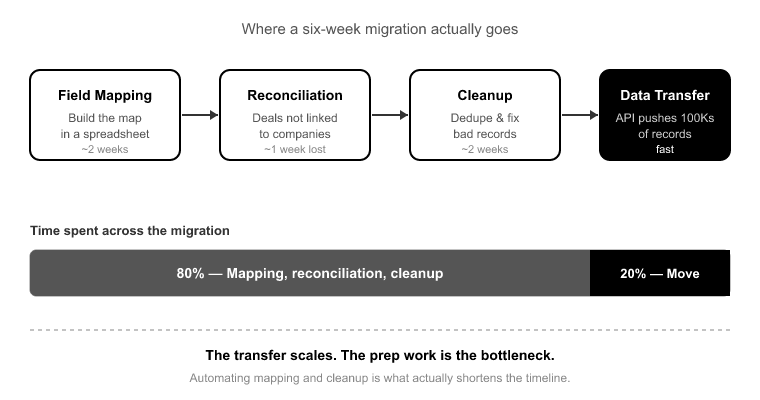
Roughly 80% of a manual CRM migration is spent on mapping, reconciliation, and cleanup. Only about 20% is actual data movement.[1] The engine pushing records into HubSpot is the part that scales. API throughput handles hundreds of thousands of records without breaking a sweat.[2]

So when a migration “takes six weeks,” almost none of that is the transfer. It’s the two weeks of building a field map in a spreadsheet, the week lost when someone discovers deals aren’t linked to companies, and the two weeks of cleanup after go-live when duplicates and orphaned records surface as support tickets.

This is the reframe that changes how you scope. Stop asking “how fast can we move the data” and start asking “how fast can we find and fix the problems.” The problems are the timeline. Everything else is a background job.

What actually determines your CRM migration timeline

What actually determines your CRM migration timeline

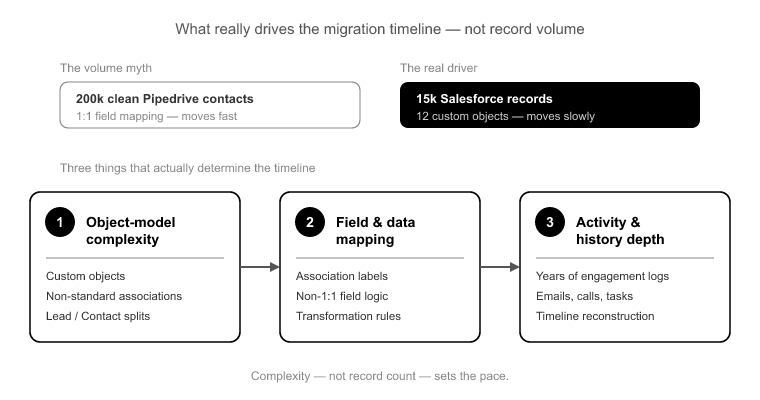
Volume is not the variable stakeholders think it is. A clean 200,000-contact Pipedrive export with near 1:1 field mapping moves faster than a 15,000-record Salesforce org with 12 custom objects, Lead/Contact splits, association labels, and three years of activity history. Practitioners know this instinctively. Stakeholders almost never do.

Three things drive the real crm migration timeline:

Object-model complexity. Every custom object, every non-standard association, every Salesforce Lead with no native HubSpot equivalent adds mapping decisions. Salesforce Leads map to Contacts, and sometimes Companies, and that decision logic has to be defined up front, not improvised mid-run.

Data quality. Duplicates, empty required fields, and broken source associations don’t just slow the transfer, they multiply on import if you don’t catch them first. Bring 5,000 messy contacts into HubSpot without a dedup and matching strategy, and you’ll leave with 5,000 plus however many partial duplicates the import manufactured.

Object-type mismatches between source and target. Salesforce splits Activities into Tasks and Events. HubSpot has one unified Activities model with typed engagements: calls, meetings, emails, notes.[3] Pipeline stages rarely map 1:1. Association labels like “Decision Maker” or “Billing Contact” get dropped entirely if your tool only preserves the raw association and not the label. Each mismatch is a mapping decision that, left undefined, becomes a cleanup project.

The four phases of a CRM migration timeline and where projects stall

Every SuprSwitch migration runs through four phases across 3–4 days. The reason it’s days and not weeks is simple: the discovery and validation work that normally surfaces mid-run gets moved to the front, before any live data moves.

Phase 1 Schema Analysis (Day 1). SuprSwitch scans the source CRM database and surfaces custom fields, record counts, property types, and data quality issues like duplicates, broken associations, and empty required fields, all before anything moves. This is where the hidden timeline-killers get found. In a manual migration, these surface in week three. Here they surface on Day 1, when fixing them costs you a mapping adjustment instead of a full re-run.

Phase 2 Mapping Logic (Day 2). The transformation layer maps every source object to the HubSpot data model. Custom properties get created in HubSpot, association rules get defined, object-type mismatches get resolved (the Lead-to-Contact decision, the Tasks-and-Events-to-Activities split), and the ownership transfer engine sets reassignment logic for deactivated users. The entire map is defined and reviewed before the first record moves. This is the phase clients own. Mapping review and sign-off is where your team’s decisions get locked in.

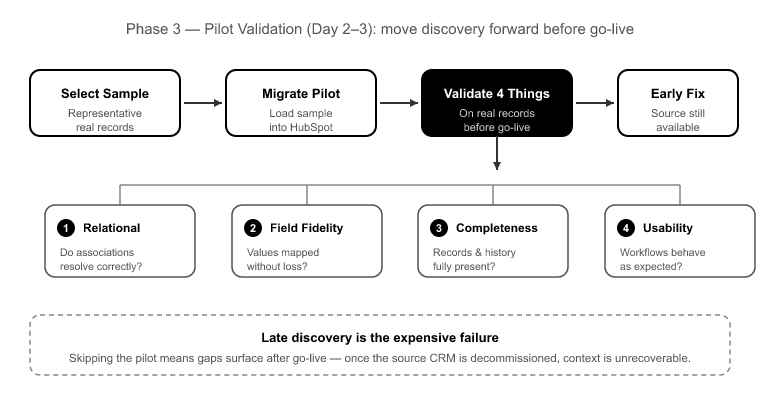
Phase 3 Pilot Validation (Day 2–3). A representative sample migrates into HubSpot to validate relational integrity, activity history formatting, field-level truncation, and association chains. This is the specific mechanism that kills the “run it, break it, unwind it, re-run it” spiral. Any issue caught here gets fixed in the mapping layer, not after 200,000 records have already landed wrong.

Phase 4 Final Execution (Day 3–4). The full dataset runs through the migration engine with real-time record validation. If a record doesn’t appear in HubSpot within the expected window, it flags immediately. Failed records hit the retry mechanism and re-run without restarting the whole job. Every record is validated post-migration before go-live is confirmed.

Skip Phase 1 and you discover broken associations mid-run. Skip Phase 3 and you find field truncation after go-live, one confused rep at a time. The phases aren’t bureaucracy. Each one is a place a manual migration goes to die.

The hidden time-killers: associations, ownership gaps, and activity history

The hidden time-killers- associations, ownership gaps, and activi

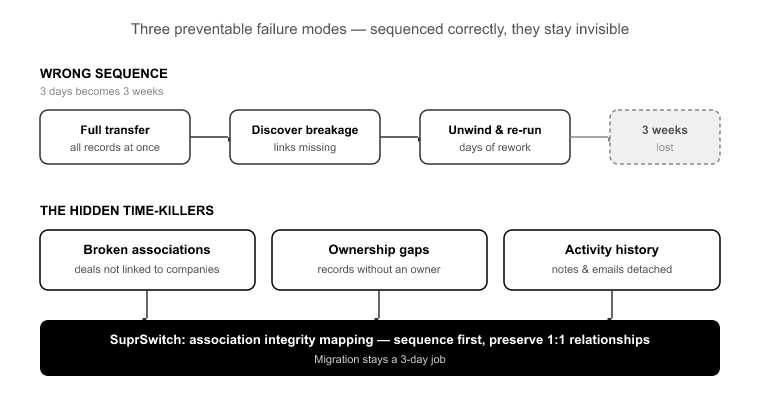
Three failure modes turn a 3-day migration into a 3-week one. Every one of them is preventable, and every one of them is invisible if you sequence the migration wrong.

Broken associations. This is the single biggest cause of a “two-week migration” becoming a two-month one. Teams run the full transfer, then discover deals aren’t linked to companies or activities aren’t attached to contacts. Now they’re unwinding and re-running. SuprSwitch’s association integrity mapping preserves 1:1 relationships between objects, so deals stay linked to companies and activities stay attached to contacts. And because association chains get validated in the pilot phase, a break gets caught on a sample of a few hundred records, not on the full run.

Deactivated-user ownership gaps. When a record’s owner no longer exists in the source system, most migrations either fail those records or dump them all on an admin. Reps log in day one and their book of business is orphaned. That’s not a data issue, it’s a trust-killer that poisons adoption. The ownership transfer engine handles this before the migration runs. Reassignment logic gets defined in the mapping layer in Phase 2, so no record lands orphaned on go-live day.

Activity history mismatches. If your mapping doesn’t handle the Salesforce Tasks-and-Events split into HubSpot’s unified Activities model, call and meeting history silently disappears. Nobody notices until a rep goes looking for a past conversation and it’s gone. Pilot Validation catches formatting issues here on the sample, before the full history moves. “The job finished running” is not the same as “the history is intact.”

How SuprSwitch compresses the CRM migration timeline to 3–4 days

The mechanism isn’t a faster engine. It’s sequencing. The industry-default 3–6 week timeline is real,[4] but it’s a symptom of doing the transfer first and discovering problems after. SuprSwitch inverts that.

Discovery moves to Day 1 with Schema Analysis. Mapping decisions get locked and reviewed on Day 2. The pilot validates relational integrity and activity formatting on Day 2–3, so nothing breaks on the full run. Final Execution on Day 3–4 runs with real-time record validation flagging failures during transfer, not weeks later. Failed records auto-retry via the retry mechanism without a full re-run.

For technical buyers scoping the security dimension: SuprSwitch runs on a no-storage architecture, so customer data is never held on SuprSwitch servers. That matters for the timeline too, because it removes the data-residency and vendor-storage review that can add a week to your compliance sign-off.

Migration timeline by scenario: SMB to enterprise

Migration timeline by scenario- SMB to enterprise

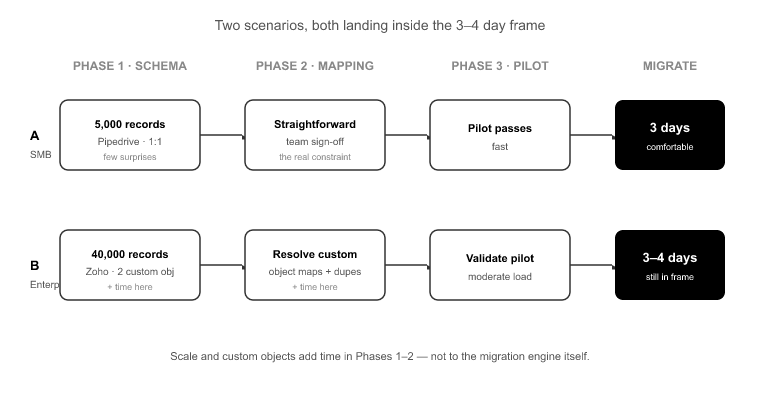
Here’s what the ranges actually look like, all landing inside the 3–4 day frame:

Clean 5,000-record Pipedrive, near 1:1 mapping. Schema Analysis finds few surprises, mapping is straightforward, and the pilot passes fast. This is a comfortable 3-day migration, and the constraint is your team’s mapping sign-off in Phase 2, not the tool.

40,000-record Zoho with two custom objects and moderate duplicate load. Still 3–4 days. The added time is in Phase 1 and Phase 2, resolving custom object mapping and defining the dedup strategy, not in the transfer.

400,000-record Salesforce with 12 custom objects, Lead/Contact splits, association labels, and three years of activity history. This is a 4-day migration. The volume doesn’t drive it, the mapping complexity does. Schema Analysis carries more weight and the pilot validates more association chains, but the full execution still runs in hours, not days.

Notice what doesn’t happen in any of these: nobody discovers a broken association in week three, because the discovery already happened on Day 1.

How to set realistic timeline expectations with stakeholders

Give your stakeholders honest language. Promise a 3–4 day execution window, but be explicit that the clock depends on how fast their team reviews and signs off the mapping in Phase 2. That’s the one dependency that lives on the client side, and it’s the most common cause of a slipped date.

Caveat the things you genuinely can’t know until Schema Analysis runs: the true duplicate load, the number of records owned by deactivated users, and how badly the source associations are already broken. Never commit to a timeline blind. The whole point of running Phase 1 first is that you scope on real numbers, not a guess against record count.

Conclusion

The 3–6 week CRM migration isn’t a law of physics. It’s a sequencing problem. When you run the transfer first and discover broken associations, ownership gaps, and activity mismatches afterward, you spend weeks unwinding and re-running. When you find those problems on Day 1, you fix them in the mapping layer and the full run goes clean.

That’s the entire logic behind the four-phase SuprSwitch process: Schema Analysis on Day 1, Mapping Logic on Day 2, Pilot Validation on Day 2–3, Final Execution on Day 3–4, with real-time record validation, association integrity mapping, and the ownership transfer engine doing the work that manual migrations leave for the cleanup phase.

So the next time someone asks how long your migration will take, don’t answer from the record count. Run the Schema Analysis, find the problems while they’re cheap to fix, and scope the crm migration timeline on real numbers. That’s the difference between a 4-day migration and a 4-week one.


References

  1. Salesforce Architects, “Data Migration Best Practices and Effort Distribution,” Salesforce Developer Documentation, 2023.
  2. HubSpot Developers, “CRM API Rate Limits and Batch Processing,” HubSpot API Documentation, 2024.
  3. HubSpot, “Understanding the Activities and Engagements Data Model,” HubSpot Knowledge Base, 2024.
  4. Nucleus Research, “CRM Implementation and Data Migration Benchmarks,” Industry Report, 2023.

How to Migrate CRM Data Without Losing Associations, History, or Ownership: CRM Data Migration Best Practices

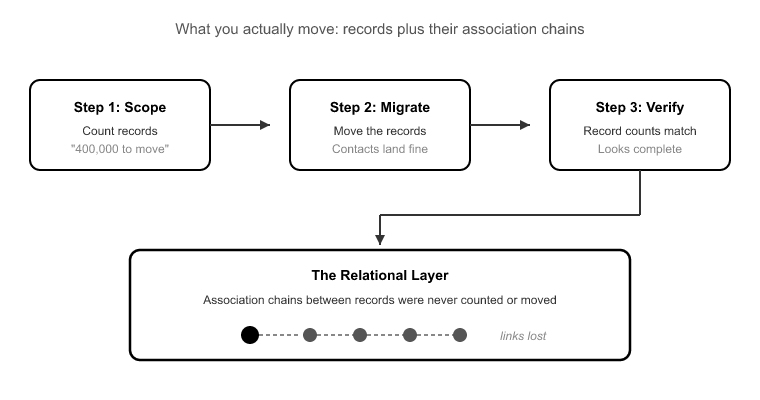
The migration report says 400,000 records moved. The contact count matches. The company count matches. Everyone signs off, the old Salesforce org gets decommissioned, and three weeks later a rep opens a key account and finds nothing. No company link, no activity history, no owner. The data is technically in HubSpot. The relationships between the data are gone.

This is the failure mode nobody scopes for. Migrations don’t break on record count. They break on the relational layer. The contacts and companies come across fine because they’re flat objects. What silently drops is the connective tissue: the associations linking a contact to their company, the call and meeting history that gives a deal its context, and the ownership assignments that route accountability. Those three things are what make a CRM a CRM, and they’re exactly what a naive import flattens.

The fix isn’t a bigger import tool. It’s a migration sequence that validates relational integrity, history formatting, and ownership logic before the full dataset moves. That’s the core of real crm data migration best practices, and it’s why SuprSwitch front-loads schema analysis and pilot validation into the first two days instead of discovering broken associations in a post-go-live support ticket.

Why CRM Migrations Lose Data at the Relational Layer, Not the Record Layer

Why CRM Migrations Lose Data at the Relational Layer, Not the Rec

When teams scope a migration, they count records. “We have 400,000 records to move.” That framing is where migrations go wrong, because 400,000 records is not what you’re moving. You’re moving the records plus the association chains between them.

A single company in a mature CRM can hold hundreds of associated contacts, deals, tickets, and activities. Association count routinely exceeds record count by an order of magnitude.[1] When someone says “we just need to move the contacts,” they’re describing maybe 20% of the actual work, and they’ve mentally excluded the 80% that’s hardest to get right.

Here’s why the relational layer is fragile. Records are self-contained: a contact has a first name, last name, and email. Copy those fields into HubSpot and the record is intact. But an association is a reference. It points from one record to another using internal IDs that are completely different between the source CRM and HubSpot. If your migration doesn’t explicitly rebuild those pointers against HubSpot’s new IDs, the reference resolves to nothing. The contact imports. The company imports. The link between them evaporates.

The same logic applies to activity history and ownership. An activity is logged against a record ID. An owner is a reference to a user ID. Break the ID resolution and you don’t get an error. You get a record that looks complete but has lost everything that made it useful. That’s the trap: flat importers report success on record count while quietly dropping the relational layer.

CRM Data Migration Best Practices for Preserving Associations

CRM Data Migration Best Practices for Preserving Associations

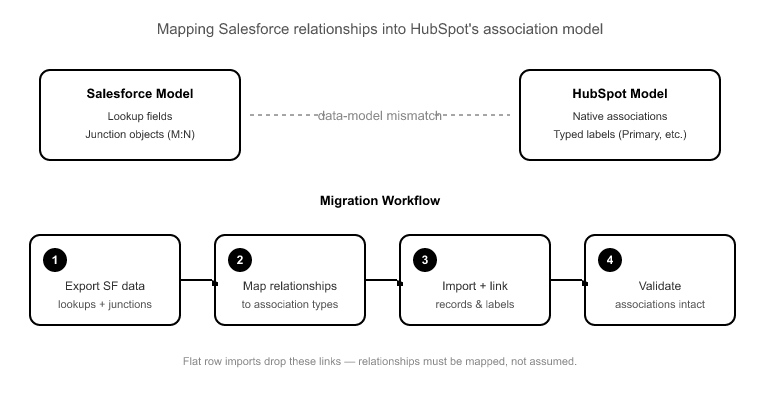
The associations problem starts with a data-model mismatch. Salesforce represents relationships using junction objects and lookup fields. A contact’s link to an account lives in a lookup, and many-to-many relationships get their own junction records. HubSpot uses a native association model with typed association labels (Primary company, Billing contact, Decision maker, and so on).

These two models don’t line up automatically. If your migration imports Contacts and Companies as flat rows with no association rules defined, you end up with the classic outcome: 40,000 contacts, 8,000 companies, and zero links between them. There’s no button to reconstruct “who works where” after the fact. That information lived in the source lookups you didn’t map, and if the source CRM is decommissioned, it’s unrecoverable.

SuprSwitch handles this with association integrity mapping, which preserves the 1:1 object relationships as it rebuilds them against HubSpot’s ID space. During Phase 2 Mapping Logic (Day 2), the transformation layer defines the association rules explicitly: which source relationship maps to which HubSpot association type, and which label it carries. That mapping is reviewed before a single record moves, so the link between a contact and their company is designed in, not left to chance during a bulk import.

This is also where object-type mismatches get resolved. Salesforce Leads, for example, have no native HubSpot equivalent. HubSpot models that pre-qualified state as a lifecycle stage on the Contact object, not a separate object. Without an explicit rule, Leads either fail to import or land somewhere that corrupts your funnel reporting. The mapping layer is where you make that decision deliberately.

Migrating Activity and Notes History Without Flattening It

Activity history is the second thing that silently disappears, and Salesforce migrations have a specific trap here that catches practitioners who’ve never done one.

Salesforce stores activities across two separate objects: Tasks and Events. HubSpot has one unified engagements model spanning calls, emails, meetings, and notes. To migrate cleanly, you need a transformation rule that merges those two source objects into HubSpot’s single model, without collapsing the distinction between a logged call and a scheduled meeting, and without losing the record ID each activity was logged against.

Get this wrong and you lose the chronological trail reps depend on. A deal with no activity history is a deal with no story. The rep can’t see the last conversation, the objection that stalled it, or the meeting where the champion went quiet. Two things have to survive the transformation: the timestamp (so the history stays in chronological order) and the associated record ID (so the engagement stays attached to the right contact and deal).

In SuprSwitch, the Tasks/Events to unified Activities reconciliation is defined in the mapping layer during Phase 2 and then verified in Phase 3 Pilot Validation. The pilot run migrates a representative sample specifically so you can confirm activity history formatting and association chains on real records before committing the full dataset. If a call log lands with the wrong timestamp or detaches from its deal, you catch it on the sample and fix it in the mapping, not across 400,000 records after go-live.

Ownership Transfer and the Deactivated-User Problem

Every migration inherits a graveyard of former employees. The rep who owned a marquee account two years ago has left the company, and their user seat was deactivated the day they walked out. Their name is still stamped on hundreds of deals and contacts as the owner.

If you don’t remap ownership before the run, those records import as ownerless, or fail validation entirely, because HubSpot can’t resolve an owner reference to a user that doesn’t exist in the portal. Ownerless records are not a cosmetic problem. They break territory routing, they fall out of reporting rollups keyed on owner, and they never enroll in workflows whose triggers depend on owner. An entire book of business can go dark.

SuprSwitch’s ownership transfer engine handles this before the migration runs. During Phase 2, deactivated-user ownership gaps get remapped according to logic you define: reassign to the current territory owner, roll up to a manager, or route to a house account. The decision is made deliberately in the mapping layer, so no record lands ownerless and no owner-keyed automation silently fails on day one.

Deduplication of CRM Data Before Migration

Source CRMs accumulate duplicates over years: the same contact entered three times by three reps, the same company under two spellings. The instinct is to migrate first and clean up in HubSpot later. That’s backwards, and here’s the specific reason.

When you import duplicates, you don’t just carry the mess over. You fracture the relational layer across the copies. Contact A gets two deals and four activities; duplicate Contact A’ gets three deals and six activities. Neither record shows the full picture, because the associations and history split across both copies based on which duplicate each one happened to reference in the source. Now deduplication in HubSpot means merging records and reconciling their scattered associations, a far harder job than catching the duplicates before they multiply their links.

This is why deduplication of CRM Data belongs in Phase 1 Schema Analysis. SuprSwitch scans the source CRM for duplicates as part of the same pass that surfaces custom fields and broken associations, so the mess gets resolved in the mapping layer before it can fragment your history. Clean the data while it’s still one dataset, not after you’ve split it in two.

Why Pilot Validation Is the Step Most Migrations Skip

Why Pilot Validation Is the Step Most Migrations Skip

The most expensive failure mode in any migration is late discovery. Everything “looks migrated,” go-live happens, the source CRM gets decommissioned, and weeks later someone finds the gap. By then the context is unrecoverable because the source is gone.

Pilot validation exists to move that discovery forward. In Phase 3 Pilot Validation (Day 2–3), SuprSwitch migrates a representative sample into HubSpot and validates four things on real records: relational integrity (do associations resolve?), activity history formatting (did Tasks and Events merge correctly with timestamps intact?), field-level truncation (did a long text field get cut off against a HubSpot property limit?), and association chains (does a company still connect to its contacts, and those contacts to their deals?).

Any issue found here is fixed in the mapping layer and re-validated, not patched across the full dataset after the fact. This is the step that separates a 3–4 day migration from a 3–6 week one.[2] Migrations that drag on aren’t slowed by data volume; they’re slowed by broken associations discovered mid-run and the manual cleanup that follows. Volume is a throughput problem. Relational integrity is a sequencing problem, and the pilot is how you solve the sequencing before the throughput matters.

The 4-Day Migration Sequence That Preserves All Three

Here’s how the whole thing fits together. SuprSwitch runs migrations as four phases across 3–4 days, with all the discovery and validation work front-loaded before live data moves.

Phase 1 Schema Analysis (Day 1). SuprSwitch scans the source CRM and surfaces custom fields, record counts, property types, duplicates, broken associations, and empty required fields. Nothing migrates yet. This is where the three loss categories, associations, history, and ownership, get identified rather than discovered mid-run. It’s also where empty required fields get caught, so records don’t silently fail against HubSpot’s required-property rejection later.

Phase 2 Mapping Logic (Day 2). The transformation layer maps source objects to the HubSpot data model. Custom properties get created, association integrity mapping rules get defined, the Tasks/Events to unified Activities transformation is set, deal-stage mapping is resolved so deals don’t land in the wrong pipeline stage and corrupt forecasting, and the ownership transfer engine logic is configured. Everything is reviewed before the first record moves.

Phase 3 Pilot Validation (Day 2–3). A representative sample migrates to validate relational integrity, activity formatting, truncation, and association chains. Issues get fixed in the mapping, not post-migration.

Phase 4 Final Execution (Day 3–4). The full dataset runs through the migration engine with real-time record validation: if a record doesn’t appear in HubSpot within the expected window, it flags immediately. Failed records auto-retry through the retry mechanism without restarting the full job. Every record is validated post-migration before go-live is confirmed. Throughout, SuprSwitch’s no-storage architecture means your customer data is never held on our servers. It moves from source to HubSpot without persisting anywhere in between.

Conclusion

Records are the easy part of a migration. Any importer can copy a contact’s name and email into HubSpot. What separates a clean migration from a corrupted one is whether the relational layer survives: the associations that link contacts to companies, the activity history that gives deals their context, and the ownership that routes accountability.

Those three things break silently, and they break because of decisions made, or skipped, before any data moves. The best crm data migration best practices all point in the same direction: front-load the discovery. Surface the broken associations, the Tasks/Events split, the deactivated-user gaps, and the duplicates in schema analysis. Design the mapping deliberately. Validate on a pilot. Then run the full dataset with real-time validation confirming every record lands intact.

That sequence is what compresses a migration from weeks to 3–4 days, not because the data moves faster, but because you stop discovering problems mid-run and after go-live. Get the sequencing right, and the throughput takes care of itself. Don’t decommission your source CRM until every association, every activity, and every ownership assignment has been validated in HubSpot, because once the source is gone, the context you dropped is gone with it.


References

  1. HubSpot, “Understand the association model between records, activities, and objects,” HubSpot Knowledge Base, 2024.
  2. Salesforce, “Migrate Data to a New Org: Planning and Sequencing Considerations,” Salesforce Architects Guide, 2023.

ActiveCampaign to HubSpot Migration: The Complete Ops Guide

The records that break an activecampaign to hubspot migration aren’t the ones you worry about. Contacts move. Deals move. Companies move. What breaks are the things ActiveCampaign relies on as its operational backbone, but HubSpot has no native equivalent for: tags, automation logic, subscription status, and email engagement history. Get those wrong and you won’t find out during the migration. You find out two weeks later, when a segment is empty, a follow-up never fires, or your first send hits 4,000 people who opted out.

I’ve run this migration enough times to know the failure pattern cold. The team treats it like a data copy, moves the contacts, flips to HubSpot, and learns the hard way that ActiveCampaign and HubSpot don’t share a data model. This guide walks through what actually breaks, how to map it before any record moves, and where the honest scope line sits. One part of this migration isn’t a data problem at all.

Why ActiveCampaign and HubSpot Don’t Share a Data Model

Why ActiveCampaign and HubSpot Dont Share a Data Model

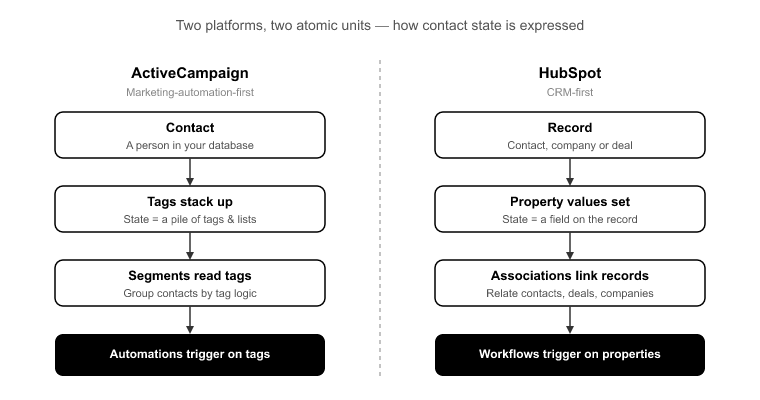
ActiveCampaign is a marketing-automation-first platform. Its core logic runs on tags, lists, and visual automations. A contact’s state, where they sit in your funnel, what they’ve done, what campaign they belong to, is expressed as a stack of tags. Segments read those tags. Automations trigger on them. The tag is the atomic unit of everything.

HubSpot is a CRM-first platform. Its core logic runs on properties, associations, and workflows. State is expressed as a property value on a record, and relationships between records, contact to company, contact to deal, are first-class objects. HubSpot has no tag object at all.

That structural gap is why this is a translation, not a transfer. You can’t copy a tag into HubSpot because there’s nowhere for it to land natively. You have to decide, tag by tag, what that tag means. Is it a lifecycle state, a behavioral flag, or a campaign membership? Then you translate it into the HubSpot construct that carries that meaning. Skip that decision and the tag either vanishes or clutters your property model with hundreds of near-useless boolean fields.

The teams that struggle here assume a “contact is a contact.” The teams that succeed treat the migration as the moment to re-model their segmentation logic in HubSpot’s terms. That modeling work is the whole game.

The Four Things That Actually Break in an ActiveCampaign to HubSpot Migration

The Four Things That Actually Break in an ActiveCampaign to HubSp

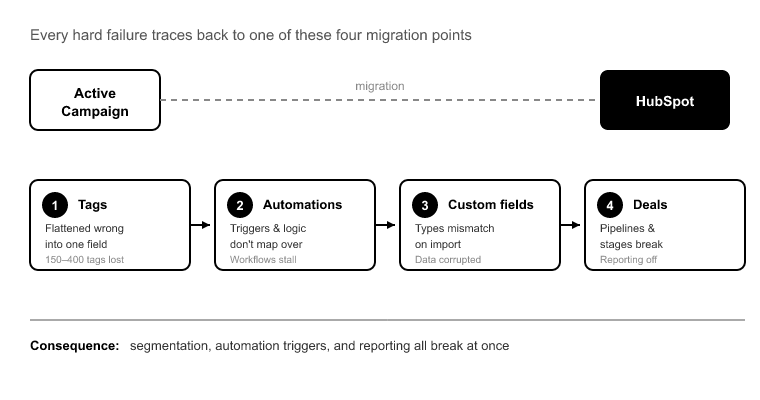
Every hard failure I’ve seen in an activecampaign to hubspot migration traces back to one of four things. Here’s each one, and the specific consequence of getting it wrong.

1. Tags, flattened wrong, destroy your segmentation

A mid-market AC org with 60,000 contacts commonly carries 150 to 400 distinct tags,[1] and individual contacts routinely hold 20 to 100 tags each. These tags are the backbone of every segment and automation trigger in the account.

The naive approach creates one boolean property per tag. Now you have 300 checkbox fields cluttering every contact record and every property dropdown, most of them dead weight. The right approach sorts the tags by function: behavioral and state tags become a multi-select property or drive list membership; lifecycle tags map to lifecycle stage or lead status; campaign tags become active or static list memberships. That decision has to be made in the mapping phase, not improvised at import time.

2. Automations don’t migrate, they get rebuilt

This is the single biggest false assumption in AC migrations. ActiveCampaign’s visual automations, tag-triggered entries, wait steps, if/else branches, goal actions, have no data-export path into HubSpot workflows. There is no file, no API endpoint, no tool that carries automation logic across.

The recognizable failure mode: a team migrates contacts and deals cleanly, flips to HubSpot, and finds no automated follow-up fires because nobody rebuilt the 40 AC automations as workflows. The data was perfect. The logic never existed in HubSpot. I’ll say this plainly, because glossing over it is how projects blow up: the automation rebuild is a separate track, and no migration tool does it for you. Plan for it as its own workstream, running in parallel to the data migration.

3. Dropped opt-out status is a compliance failure, not an inconvenience

ActiveCampaign tracks unsubscribes per list and globally. HubSpot uses subscription types and a marketing / non-marketing contact status. These don’t line up automatically. If opt-out status doesn’t map correctly, your first HubSpot send emails people who unsubscribed. That’s a CAN-SPAM and GDPR exposure, plus an immediate deliverability hit as spam complaints spike.[2]

This is not a field you reconcile after go-live. Subscription and opt-out mapping is a Day 2 decision, and you validate it in the pilot before a single marketing email is possible.

4. Engagement history has no native landing spot

AC stores opens, clicks, and site-tracking events tied to its own email engine. HubSpot’s engagement timeline is tied to HubSpot-sent email. You can’t turn a historical AC email open into a native HubSpot email event, because the underlying send never happened in HubSpot.

What you can do is preserve that history as timeline activities and notes on the contact record, so sales keeps the context. That’s the honest ceiling: the history is retained and readable, but it won’t populate HubSpot’s native email engagement metrics. Set that expectation with stakeholders before they go looking for open rates that were never HubSpot’s to report.

How to Map ActiveCampaign Tags Into HubSpot

How to Map ActiveCampaign Tags Into HubSpot

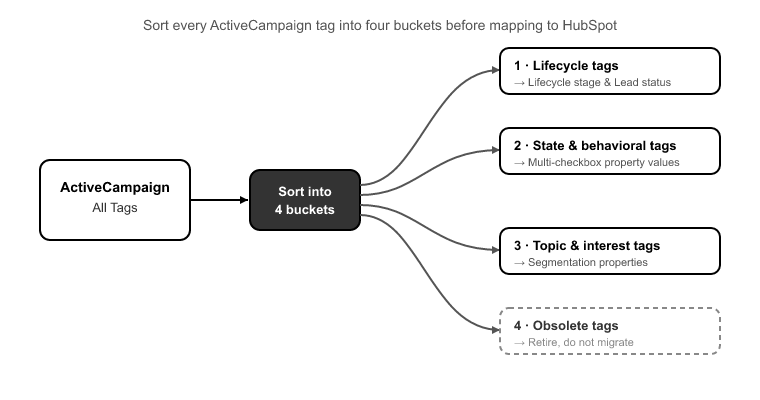
Tag mapping is where the migration is won or lost, so it deserves its own method. Before you touch HubSpot, sort every tag into one of four buckets:

Lifecycle tags: anything that expresses funnel position, like “MQL,” “Customer,” or “Churned.” These map to HubSpot’s lifecycle stage and lead status properties. There should be a clean handful of these, not dozens.

State and behavioral tags: flags like “Attended Webinar,” “High Intent,” or “Requested Demo.” These become values in a single multi-select property, one property with many options, rather than one boolean each. That keeps your property model clean while preserving the filter logic.

Campaign and source tags: “Q3 Newsletter,” “Trade Show 2024.” These map to list membership: static lists for historical membership, active lists where the criteria still apply.

Dead tags: every AC account has them, typos, one-off tests, tags applied to three contacts back in 2021. The migration is the moment to leave them behind. Don’t carry noise into a clean instance.

Do this sorting exercise against the actual tag inventory, not from memory. That’s why the first thing SuprSwitch does in Phase 1, Schema Analysis is surface the complete tag list with usage counts, so you’re mapping against reality and can spot the dead tags at a glance.

The Four-Phase SuprSwitch Migration Timeline

The Four-Phase SuprSwitch Migration Timeline

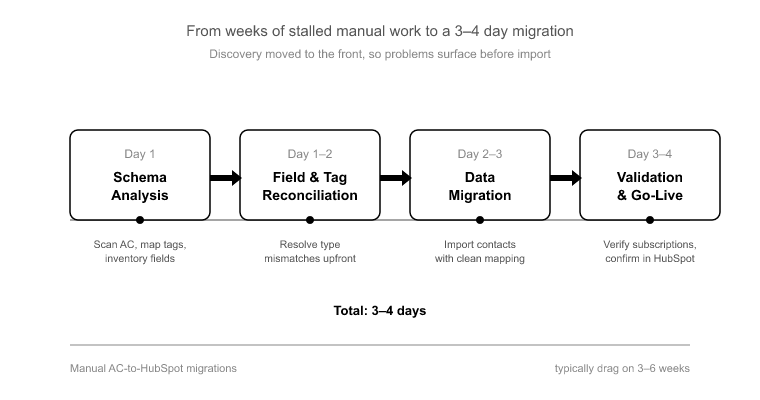
Manual AC-to-HubSpot migrations commonly drag on for three to six weeks,[3] and almost never because of data volume. They stall because tag-mapping decisions, subscription reconciliation, and field-type mismatches get discovered late, mid-import, when they’re expensive to fix. SuprSwitch compresses the data migration to 3 to 4 days by moving all that discovery to the front.

Phase 1, Schema Analysis (Day 1) : SuprSwitch scans the ActiveCampaign instance and surfaces the full tag inventory, custom field list, list memberships, deal and pipeline structure, record counts, and data-quality issues like empty required fields, duplicate risk, and field-type mismatches. Nothing moves yet. This is where the tag explosion and the dropdown-imported-as-text problems get exposed, before they can corrupt anything.

Phase 2, Mapping Logic (Day 2) : The transformation layer defines exactly how each AC tag becomes a HubSpot multi-select property or list membership, maps custom fields to correctly typed HubSpot properties, maps AC accounts to Companies, and maps deals into the target pipeline with preserved create dates and stage-entry timestamps, so time-in-stage and velocity reporting survives. This is also where the ownership transfer engine sets logic for any deactivated AC users, so records don’t land unassigned. And association integrity mapping preserves the contact-to-deal-to-company chain so deals don’t arrive orphaned from their contacts.

Phase 3, Pilot Validation (Day 2 to 3) : A representative sample runs into HubSpot to confirm tags render correctly as properties and list memberships, engagement history formats as intended on the timeline, subscription status carries over accurately, and no field truncation occurs. Anything wrong gets fixed in the mapping layer, not cleaned up after the full run. The pilot migration is the difference between finding a truncation bug in 200 records versus 60,000.

Phase 4, Final Execution (Day 3 to 4) : The full dataset runs through the migration engine with real-time record validation. If a contact doesn’t appear in HubSpot within the expected window, it flags immediately rather than surfacing three weeks later in a support ticket. The retry mechanism re-attempts failed records automatically without restarting the whole job. Every record is validated post-migration before go-live is confirmed.

One more thing that matters for GDPR-sensitive contact databases: SuprSwitch runs on a no-storage architecture. Your AC contact and engagement data is never held on SuprSwitch servers. It’s transformed in transit and written straight to your HubSpot portal.

The Marketing-Contacts Decision That Sets Your HubSpot Bill

Here’s the cost lever most teams miss. Every AC contact imported as a HubSpot marketing contact is billable. Migrate all 60,000 contacts as marketing by default and you’ve inflated your HubSpot bill for the life of the account.[4]

The migration is the moment to decide which contacts are marketing versus non-marketing. Contacts you’ll actively email are marketing. Historical, unsubscribed, or closed-lost contacts you want for record-keeping but won’t send to can land as non-marketing at no per-contact cost. This gets set in the Phase 2 mapping logic, usually driven off the same subscription-status and lifecycle data you’re already reconciling. Decide it deliberately, once, and you protect the budget permanently.

Conclusion

An activecampaign to hubspot migration is a structural translation between two platforms that model data in fundamentally different ways. The contacts and deals are the easy part. The tags, subscription status, engagement history, and the marketing-contact decision are where migrations actually break, and every one of them is a mapping decision that has to be made before data moves, not improvised at import.

Split the work into two honest tracks. The data track, contacts, companies, deals, custom fields, tags, and engagement history, runs cleanly in 3 to 4 days with SuprSwitch, because Schema Analysis and Mapping Logic front-load the discovery and Pilot Validation catches problems before the full run. The automation track, rebuilding your AC automations as HubSpot workflows, is manual, parallel, and owned by you. Anyone telling you a tool does both is setting you up for dead workflows on go-live day.

Run those tracks together, make your tag and subscription mapping decisions on Day 1 and 2, and you go live with clean data, intact segmentation, protected compliance status, and a HubSpot bill you actually chose. That’s the difference between a migration you recover from and one you barely notice.

Frequently Asked Questions

How do you migrate ActiveCampaign automations to HubSpot?

ActiveCampaign automation logic is recreated in HubSpot workflows, with triggers, actions, and enrollment criteria mapped to HubSpot’s workflow structure. SuprSwitch by SuprDense handles the underlying data migration, while the automation workstream prepares workflows for a smooth transition.

How long does an ActiveCampaign to HubSpot migration take?

With SuprSwitch by SuprDense, the data migration typically takes 3–4 days, including schema analysis, data mapping, pilot validation, and final execution. Automation setup runs alongside the migration and varies based on workflow volume and complexity.

How do you migrate ActiveCampaign tags, contacts, and email history to HubSpot?

SuprSwitch by SuprDense maps ActiveCampaign tags to the appropriate HubSpot properties or lists, transfers contacts and related records, and preserves historical email engagement as timeline activities. Unsubscribe and subscription data is mapped to HubSpot’s subscription settings to maintain communication preferences.

References

  1. HubSpot Community and Solutions Partner benchmarks on ActiveCampaign tag density in mid-market accounts, HubSpot Community forums, 2023.
  2. Federal Trade Commission, “CAN-SPAM Act: A Compliance Guide for Business,” and EU GDPR Article 21 (right to object), on unsubscribe handling and sender obligations.
  3. Aggregated CRM migration project timelines, RevOps practitioner surveys and HubSpot Partner delivery reports, 2022 to 2024.
  4. HubSpot, “Marketing Contacts pricing model,” HubSpot Knowledge Base, 2024.

Best Salesforce Migration Tools for Your CRM Data & Migration

Salesforce provides more than one way to import data, and the market provides many more. That variety is useful until a team tries to compare tools built for completely different jobs.

A spreadsheet wizard, a desktop bulk loader, a Salesforce CLI plugin, a no-code integration platform, and an enterprise iPaaS can all be called Salesforce migration tools. They do not solve the same migration problem.

The correct choice depends on whether you are loading a few standard objects, moving millions of records, cloning data between Salesforce orgs, migrating another CRM into Salesforce, or coordinating a larger transformation across applications, databases, and APIs.

This guide compares top Salesforce data migration tools across those use cases. It also explains where native Salesforce utilities are enough, where third-party tooling becomes useful, and which questions reveal whether a platform can preserve your actual data model.

What Are Salesforce Migration Tools? 

Salesforce migration tools extract, transform, load, synchronize, or validate data moving into, out of, or between Salesforce environments.

They may be used for:

  • Importing accounts, contacts, leads, opportunities, cases, products, and other records.
  • Updating, upserting, deleting, or exporting existing Salesforce data.
  • Moving data between production, sandbox, development, and scratch orgs.
  • Migrating from another CRM into Salesforce.
  • Consolidating Salesforce orgs after an acquisition or operating-model change.
  • Moving related standard and custom objects while preserving lookup relationships.
  • Scheduling recurring transfers between Salesforce and another application or database.
  • Supporting a larger modernization program where Salesforce coexists with enterprise systems.

The simplest SFDC migration tools are designed around prepared CSV files. More advanced platforms connect directly to source systems, automate mapping, transform values, move related objects in dependency order, handle API limits, and rerun failed or changed records.

Migration is still broader than loading data. Profiles, permission sets, flows, Apex, validation rules, reports, dashboards, page layouts, record types, and integrations may need separate deployment or redesign work. A data tool should not be expected to recreate an entire Salesforce operating model unless that capability is explicitly included.

What Makes Salesforce Data Migration Complex? 

Salesforce data rarely exists as one flat table. It exists as a network of records, metadata, ownership rules, automations, and dependencies.

Related objects must move in the correct order

Accounts may need to exist before contacts. Products and price books may need to exist before opportunity line items. Parent records must be created before children can reference them.

When IDs change between source and target, the migration needs an external-ID or cross-reference strategy so lookups can be rebuilt reliably.

Standard and custom objects behave differently

One org may use standard Leads and Opportunities. Another may use Person Accounts, custom objects, managed-package objects, junction objects, polymorphic relationships, or custom ownership models.

The tool must support the required objects and the fields the migration user is allowed to access. A utility that works for Accounts and Contacts may not be appropriate for a dependency-heavy custom model.

Validation and automation can reject correct-looking rows

Validation rules, required fields, duplicate rules, flows, triggers, assignment rules, and sharing behavior can change what happens when a record is inserted or updated.

The migration team must decide which automation stays active, which is bypassed, which requires ordered loading, and which must be rebuilt for the target process.

API capacity and volume affect execution

Large loads need batching, Bulk API support, retry logic, monitoring, and a clear plan for partial failures. The migration must respect Salesforce API capacity as well as the limits of the source system and any middleware.

Audit fields and ownership need preparation

Created dates, modified dates, created-by users, ownership, inactive users, and historical activities may require special Salesforce settings, permissions, or alternative storage. These decisions should be tested before the full migration.

Data keeps changing

When users continue working during a long migration, the target can become stale before cutover. A controlled project needs a way to identify and move new, updated, deleted, or merged records after the initial extraction.

How to Choose the Best Salesforce Migration Tool

Salesforce CRM migration tools should be compared against the source data model, the target org, and the operating skills available to your team.

Choose the smallest tool that can safely handle the full requirement-not the smallest tool that can load the first file.

Classify the migration pattern

Start by choosing one primary pattern:

  1. Simple file import: A limited number of standard objects and clean files.
  2. Bulk Salesforce data operation: Large inserts, updates, upserts, exports, or deletes.
  3. Salesforce org-to-org migration: Related objects moving between Salesforce environments.
  4. CRM-to-Salesforce migration: Another CRM’s data model must be translated into Salesforce.
  5. Enterprise application migration: Salesforce is one part of a larger integration or modernization landscape.

This classification immediately narrows the tool list.

Inventory data and dependencies

Document every object, field, relationship, record type, owner, file, historical activity, and custom process in scope. Include record counts and attachment sizes.

Identify the failure-prone cases:

  • Circular or many-to-many relationships.
  • Records without reliable unique identifiers.
  • Owners who do not exist in the target.
  • Picklist values that do not match.
  • Required lookups that are currently blank.
  • Managed-package objects or encrypted fields.
  • Automation that will fire during the load.

Match the tool to the operator

Salesforce admins may prefer Data Import Wizard, Data Loader, or a cloud interface such as Dataloader.io. Developers may prefer SFDMU and Salesforce CLI. Data engineers and enterprise architects may need Skyvia, MuleSoft, Informatica, or Jitterbit.

A purpose-built CRM migration platform can be a better fit when the project requires source-aware mapping and end-to-end migration controls without assembling those controls from several utilities.

Require testability and recovery

Ask whether the tool supports:

  • Representative test migrations.
  • Upsert using external IDs.
  • Parent-child sequencing.
  • Success and error logs.
  • Rerunning only failed or changed records.
  • Idempotent repeat execution.
  • Source-versus-target validation.
  • Rollback or recovery procedures.

The best Salesforce migration tools make failure visible and recoverable. A fast loader with weak validation can move errors faster as well.

Top Salesforce Migration Tools Compared: Features, Use Cases

The list below follows the requested editorial positioning. “Best for” describes the strongest use case-not a universal ranking for every Salesforce project.

Tool

Best for

Strongest fit

Important consideration

SuprSwitch by Suprdense

End-to-end CRM-to-CRM migration

Source-aware mapping, associations, validation, and delta migration

Confirm connector and object coverage for the exact source-target pair.

Salesforce Data Loader

Bulk Salesforce data migration

High-volume inserts, updates, upserts, deletes, and exports

The team owns extraction, transformation, sequencing, and validation.

Salesforce Data Import Wizard

Simple Salesforce imports

Guided imports for supported standard and custom objects

Not intended for every object or complex dependency-heavy migration.

Dataloader.io

Cloud-based Salesforce data migration

Browser-based import, export, delete, mapping, and scheduling

It is a data-loading service, not a full CRM redesign or migration program.

SFDMU

Salesforce org-to-org migrations

CLI-based movement of multiple related sObjects and CSV data

Best suited to technical teams comfortable with configuration and Salesforce CLI.

Skyvia

No-code/low-code Salesforce data migration

Cloud mapping, templates, scheduled import, and synchronization

Validate transformation depth and relationship handling for complex orgs.

MuleSoft

Enterprise Salesforce migrations and integrations

API-led connectivity and coexistence across enterprise systems

Requires architecture, implementation, governance, and enterprise ownership.

Informatica

Complex enterprise data migration

Cloud data integration, quality, governance, and broad connectors

More platform than point migration utility; implementation scope can be substantial.

Jitterbit

Enterprise data integration/migration

Salesforce connectors, reusable integration patterns, orchestration, and APIs

Distinguish the current Harmony platform from the retired basic Jitterbit Data Loader.

Import2

CRM-to-Salesforce migrations

Automated direct migration from supported CRMs

Review source support, Salesforce object coverage, audit fields, and API/storage limits.


1. SuprSwitch by Suprdense – Best for end-to-end CRM-to-CRM migration

SuprSwitch is designed for migrations where the source and destination data models must be understood together.

The platform focuses on connecting CRM systems, mapping objects and properties contextually, preserving record associations, handling duplicate candidates, validating records, retrying failures, and capturing delta changes before cutover.

That makes it a strong fit when the migration is not simply “load this CSV into Salesforce” but “move a working CRM into another CRM without losing the structure around each record.”

Consider SuprSwitch when:

  • The source CRM and Salesforce use different object models.
  • Custom fields, custom objects, ownership, and historical activities are in scope.
  • Relationships must be reconstructed across several record types.
  • Users will continue updating the source during the migration.
  • The team wants one guided process from mapping through validation and cutover.

Check before choosing: Confirm the connector for your source, Salesforce destination coverage, object and activity scope, API requirements, and the target configuration that must exist before loading.

2. Salesforce Data Loader – Best for bulk Salesforce data migration

Salesforce Data Loader is Salesforce’s client application for bulk import and export. It supports insert, update, upsert, delete, hard delete, and export operations, with CSV input or database connectivity and detailed success and error files.

Salesforce documents support for standard and custom objects and large-volume processing through Bulk API options. It can be used interactively through its interface or automated through command-line configuration on supported environments.

Consider Salesforce Data Loader when:

  • The team needs repeatable bulk operations within Salesforce.
  • Files are already extracted and transformed.
  • An admin or technical operator can manage field mapping and IDs.
  • Success and error CSV files provide sufficient operational feedback.

Check before choosing: Plan object dependency order, external IDs, automation behavior, batch settings, API impact, ownership, and validation outside the tool. Data Loader moves Salesforce records; it does not translate an unfamiliar source CRM automatically.

3. Salesforce Data Import Wizard – Best for simple Salesforce imports

The Salesforce Data Import Wizard is a guided, browser-based option available from Salesforce Setup. It is intended for supported imports where an administrator wants a straightforward interface without installing a separate client.

It is useful for limited, well-prepared datasets and common admin tasks. It is less suitable when the project requires broader object coverage, large-scale data operations, complex parent-child sequencing, or a repeatable multi-stage migration pipeline.

Consider Data Import Wizard when:

  • The import is small and uncomplicated.
  • Supported standard or custom objects are involved.
  • The user wants a guided Salesforce-native interface.
  • The team can clean and map the data before upload.

Check before choosing: Review the supported object, operation, and volume limits for your org; test matching behavior; and confirm how duplicate rules, record types, required fields, and ownership will be handled.

4. Dataloader.io – Best for cloud-based Salesforce data migration

Dataloader.io is a browser-based Salesforce data loader associated with MuleSoft. It supports importing, exporting, and deleting Salesforce data without installing a desktop application.

Its official product information highlights OAuth-based access, mapping assistance, related-object export, connections to file repositories, and scheduled tasks. It can be easier to operate than a desktop utility when teams want cloud access and recurring jobs.

Consider Dataloader.io when:

  • A browser-based loader is preferred.
  • Imports and exports need to be scheduled.
  • Files come from cloud storage or FTP/SFTP sources.
  • Admins want assisted mapping without building a custom integration.

Check before choosing: Confirm plan-specific limits and features, security requirements, object dependencies, transformation needs, and whether the task is a data load or a full CRM migration.

5. SFDMU (SFDX Data Move Utility) – Best for Salesforce org-to-org migrations

SFDMU is an advanced Salesforce CLI plugin maintained in Salesforce’s verified GitHub organization. It is designed to move data between Salesforce orgs or between Salesforce and CSV files.

Its configuration-driven approach can migrate several related sObjects in one run and rebuild relationships across environments. This is useful for seeding sandboxes, populating scratch orgs, refreshing selected datasets, or running controlled org-to-org moves.

Consider SFDMU when:

  • The source and target are Salesforce environments.
  • Related standard and custom objects must move together.
  • The team wants version-controlled migration configuration.
  • Developers already use Salesforce CLI and deployment workflows.

Check before choosing: Budget for technical setup, query design, configuration testing, lookup behavior, automation effects, and recovery from partial failures. SFDMU is powerful because it is configurable, which also means it requires disciplined engineering.


6. Skyvia – Best for no-code/low-code Salesforce data migration

Skyvia provides a cloud platform for Salesforce import, export, synchronization, backup, and integration scenarios. Its Salesforce connector and predefined templates can reduce the amount of custom code needed to move data between Salesforce and supported cloud applications or databases.

It fits teams that need more automation than a spreadsheet importer but do not want to build and host a custom ETL pipeline.

Consider Skyvia when:

  • Business or technical users prefer a visual cloud workflow.
  • Data must move between Salesforce and a supported application or database.
  • Scheduled imports or synchronization are required.
  • Standard mappings or templates cover much of the use case.

Check before choosing: Test custom objects, transformations, lookup resolution, large-volume performance, API consumption, error recovery, and complex relationship behavior.

7. MuleSoft – Best for enterprise Salesforce migrations and integrations

MuleSoft is an enterprise integration and API platform rather than a single-purpose migration utility. It is appropriate when Salesforce must coexist with ERP, legacy, data, service, and custom systems during or after the migration.

An API-led architecture can support historical backfill, temporary coexistence, real-time integration, and the permanent flows that remain after cutover. This is valuable in large programs where “migration” is only one phase of a broader application transformation.

Consider MuleSoft when:

  • Salesforce is one system within an enterprise integration landscape.
  • Source and target must operate in parallel.
  • Reusable APIs and governed integration patterns are strategic requirements.
  • The organization already has MuleSoft architecture and delivery capability.

Check before choosing: Treat it as a platform implementation. Define architecture, environments, monitoring, security, API ownership, operational support, and the boundary between temporary migration flows and permanent integrations.

8. Informatica – Best for complex enterprise data migration

Informatica provides cloud data integration, application connectivity, data quality, governance, replication, and master-data capabilities. It is relevant when a Salesforce migration depends on many enterprise sources or when cleansing, lineage, governance, and reusable pipelines are major requirements.

It can bring data from applications, databases, warehouses, and cloud platforms into Salesforce or extract Salesforce data into a broader data architecture.

Consider Informatica when:

  • The migration includes several enterprise data sources.
  • Data quality, matching, governance, or lineage is central.
  • The organization already uses Informatica for integration or data management.
  • Pipelines will continue after the one-time migration.

Check before choosing: Confirm Salesforce connector behavior, required transformations, implementation effort, environment design, licensing, specialist skills, and who will operate the pipelines after go-live.

9. Jitterbit – Best for enterprise data integration/migration

Jitterbit’s current Salesforce offering is part of its Harmony integration platform, with Salesforce connectors, templates, orchestration, and API capabilities for connecting Salesforce to enterprise applications and data sources.

This is distinct from Jitterbit’s basic Cloud Data Loader, which Jitterbit documents as retired from general availability. New buyers evaluating Jitterbit should assess the current integration platform, not rely on older Data Loader comparisons.

Consider Jitterbit when:

  • Salesforce data must integrate with ERP, databases, legacy applications, or custom APIs.
  • Reusable integration recipes and orchestration are useful.
  • Migration flows may become ongoing synchronizations.
  • The organization wants an enterprise iPaaS rather than a standalone loader.

Check before choosing: Validate the current product components, Salesforce operations, migration design, throughput, monitoring, transformation depth, implementation resources, and post-cutover ownership.

10. Import2 – Best for CRM-to-Salesforce migrations

Import2 automates migrations between supported business applications and provides Salesforce-specific object documentation. Its Salesforce CRM support includes common records such as accounts, contacts, and leads, with platform guidance covering audit fields, API limits, and storage considerations.

This source-aware approach can reduce the manual work of exporting another CRM, restructuring multiple files, and loading each Salesforce object separately.

Consider Import2 when:

  • The source CRM is supported.
  • A direct CRM-to-Salesforce migration is preferred.
  • A sample migration should demonstrate the result before the full run.
  • The scope aligns with Import2’s Salesforce object coverage.

Check before choosing: Review the exact source and destination matrices, custom objects, attachments, historical activity, audit fields, API/storage limits, ownership, and how failed records are corrected and rerun.

Salesforce Data Loader vs. Third-Party Migration Tools

Salesforce Data Loader is a capable bulk utility, but it operates at a different level from source-aware CRM migration platforms and enterprise integration tools.

Decision area

Salesforce Data Loader

Third-party migration tool

Primary job

Bulk operations on Salesforce records

Migration, transformation, synchronization, or enterprise integration

Source extraction

User prepares CSV files or database connection

May connect directly to CRMs, applications, APIs, or databases

Data-model translation

Designed by the migration team

May provide source-aware mapping, templates, or specialist services

Relationships

Managed through IDs, load order, and prepared files

May automate related-object sequencing and lookup reconstruction

Transformations

Usually completed before loading

May include visual mapping, transformation, or data-quality functions

Repeatability

Supports saved mappings and automated processing options

May add samples, retries, schedules, deltas, and workflow orchestration

Validation

Success and error CSVs; broader reconciliation is user-owned

May provide dashboards, validation checks, error workflows, and support

Best fit

Prepared Salesforce bulk operations

CRM translation, org-to-org movement, complex transformation, or enterprise coexistence


Choose Data Loader when the team already knows what Salesforce should receive and can prepare every file, identifier, and dependency. Choose a third-party tool when the difficult work lies before or around the load: extracting the source, translating the data model, preserving relationships, synchronizing changes, or coordinating several systems.


Which Salesforce Migration Tool Is Right for Your Business?

Use the migration pattern as the shortlist.

  • Choose SuprSwitch for an end-to-end CRM-to-CRM migration with source-aware mapping, relationships, validation, and delta support.
  • Choose Salesforce Data Loader for controlled bulk inserts, updates, upserts, deletes, and exports when files are already prepared.
  • Choose Data Import Wizard for a simple, guided import into supported Salesforce objects.
  • Choose Dataloader.io for browser-based Salesforce loading, scheduling, and cloud-file connectivity.
  • Choose SFDMU for technical, configuration-driven Salesforce org-to-org or org-to-CSV movement.
  • Choose Skyvia for no-code/low-code migration and synchronization with supported systems.
  • Choose MuleSoft when migration is part of an API-led enterprise integration program.
  • Choose Informatica when data quality, governance, replication, and many enterprise sources are central.
  • Choose Jitterbit when Salesforce migration and ongoing integration belong in the same enterprise iPaaS workflow.
  • Choose Import2 for automated migration from a supported CRM into Salesforce.

Do not compare tools only by connector count. Ask each shortlisted vendor or project team to demonstrate the difficult records: custom objects, junction relationships, inactive owners, historical activities, duplicate candidates, failed rows, and a second run against changed data.

The phrase “best HubSpot migration tools” describes a different destination problem. If Salesforce is the destination, the shortlist must be evaluated against Salesforce objects, limits, permissions, automation, and APIs. Likewise, top HubSpot migration tools should not be selected for a Salesforce project merely because they support the same source CRM.

Move Complex Salesforce Data with More Confidence with SuprSwitch

Salesforce migrations become risky when the team has to assemble extraction scripts, spreadsheets, field maps, lookup files, loaders, validation reports, and delta processes into one temporary system.

SuprSwitch by Suprdense brings those migration stages into a guided CRM-to-CRM workflow. It is designed to connect source and destination systems, map objects and properties, preserve associations, manage duplicates, validate records, retry failures, and capture changes made during the migration window.

This is valuable when your goal is not simply to create Salesforce records. The goal is to make the destination usable-with the right ownership, history, relationships, and context around each record.

Use SuprSwitch when the source CRM and Salesforce do not line up neatly, or when the migration needs more control than a series of one-time file loads can provide.

Frequently Asked Questions 

Can Salesforce migration tools migrate custom objects and fields?

Many Salesforce migration tools support custom fields, and several support custom objects. The exact result depends on source access, destination metadata, permissions, field types, external IDs, and whether the tool can rebuild lookups between related custom records. Test representative custom objects before the full load.

Can Salesforce migration tools preserve relationships between records?

Yes, if the migration uses stable source identifiers, correct dependency order, and explicit lookup mapping. Tools designed for org-to-org or CRM-to-CRM migration may automate more of this work. Validation should confirm parent-child, many-to-many, and custom lookup relationships in Salesforce after loading.

Can Salesforce migration tools like SuprSwitch migrate historical Salesforce data?

Yes, Suprswitch can move many historical records, activities, files, and source timestamps, but the exact level of historical/audit-field preservation depends on the migration method, permissions, and Salesforce configuration.

Which Salesforce migration tool is best for large data volumes?

For large or complex Salesforce migrations, SuprSwitch is a strong fit, with source-aware mapping, relationship preservation, validation, retries, and delta migration built into the workflow.

Can Salesforce migration tools support a migration without downtime?

SuprSwitch support scheduled loads, repeatable upserts, delta migration, change capture, and temporary synchronization, helping keep Salesforce data current while users continue working in the source system. This enables a zero-downtime migration, with only a short final control window to stop writes, run the last delta, validate data parity, redirect integrations, and complete cutover. 

Best HubSpot Migration Tools: Compare Top Solutions

Choosing a HubSpot migration tool is easy when the job is described as “move our contacts.” It becomes harder when the real scope appears.

Your source system may contain companies, deals, tickets, products, activities, files, owners, custom fields, custom objects, pipeline stages, consent records, and years of relationships between them. HubSpot can represent much of that information, but the data has to land in the right objects, properties, and associations.

That is why the best HubSpot migration tools do more than transfer rows. They help you map unlike data models, preserve relationships, test the result, identify failures, and capture records that change while the migration is running.

This guide compares best tools for different migration patterns: full CRM moves, automated transfers, multi-CRM projects, simple file imports, HubSpot-to-HubSpot migration, and Service Hub migrations. The right choice depends on the shape of your data-not the length of a vendor’s feature list.

 What Are HubSpot Migration Tools?

HubSpot migration tools move business data from another system into HubSpot, between HubSpot portals, or from HubSpot to another platform.

Depending on the product, the migration may include:

  • Contacts, companies, deals, tickets, leads, products, and line items.
  • Standard and custom properties.
  • Pipelines, stages, statuses, currencies, and ownership.
  • Calls, meetings, tasks, notes, emails, and other supported activities.
  • Attachments and files.
  • Custom objects and association labels where the HubSpot subscription supports them.
  • Relationships between contacts, companies, deals, tickets, activities, and other records.
  • Historical timestamps, source IDs, consent information, and other historical context where supported by the destination APIs and migration method.

Not every tool handles all of these elements. Some HubSpot data migration tools are designed for one-time file imports. Others connect directly to source and destination systems, transform data, rebuild associations, rerun failed batches, or synchronize changes until cutover.

It also helps to separate migration from implementation. A migration tool can move records and sometimes recreate parts of the schema. It does not automatically redesign your lifecycle model, rebuild every workflow, reproduce reports, or decide which source processes should exist in HubSpot. Those decisions still require business ownership.

How to Choose the Right HubSpot

Start with the migration pattern, then choose the tool. Beginning with a product name encourages teams to squeeze the project into whatever that product supports.

Define the source and destination

Confirm whether you are moving:

  • From another CRM into HubSpot.
  • Between two HubSpot portals.
  • From a help desk into HubSpot Service Hub.
  • From several systems into one HubSpot portal.
  • From a proprietary database or unsupported application.

A tool built specifically for HubSpot-to-HubSpot replication is not automatically the best choice for a Salesforce-to-HubSpot migration. A service-desk migration specialist may preserve ticket conversations better than a general CRM importer, but it may not be intended to move the full sales data model.

Inventory the objects and relationships

Count more than contacts. List every object, property, pipeline, owner, activity type, file category, custom object, and association that matters.

Then identify the difficult records:

  • Contacts without email addresses.
  • Companies without domains.
  • Deals connected to several contacts.
  • Parent-child companies.
  • Tickets with conversation history and attachments.
  • Activities connected to more than one record.
  • Custom objects with many-to-many relationships.
  • Records owned by inactive users.

These cases usually determine which HubSpot CRM migration tools remain viable after a proof of concept.

Decide how much control you need

A clean, one-time migration may only require prepared files and HubSpot’s native import. A long-running migration may need bulk loading, delta synchronization, error retries, validation dashboards, and a repeatable cutover process.

Ask who will operate the tool. A RevOps team may prefer guided mapping and a visual workflow. A data engineering team may be comfortable with APIs, scripts, configuration files, and command-line execution. The “most powerful” tool is not useful if the project team cannot safely configure and validate it.

Test before committing

Run a representative sample containing custom fields, activities, attachments, inactive owners, duplicate candidates, and multi-object relationships. Review the records in HubSpot-not only the migration tool’s success message.

A good sample should answer four questions:

  1. Did the records arrive?
  2. Did the values retain their meaning?
  3. Did the associations survive?
  4. Can the process be repeated without creating duplicates?

What to Look for in a HubSpot Migration Tool

The top HubSpot migration tools differ in interface and scope, but the evaluation criteria remain consistent.

Object and property coverage

Check whether the tool supports every required source and destination object. “Supports HubSpot” may mean contacts and companies only, or it may include deals, tickets, products, line items, activities, custom objects, and files.

Confirm field-type behavior as well. Dropdowns, multi-select values, currencies, dates, formulas, user references, and required properties may need transformation rather than direct mapping.

Association handling

HubSpot records are connected through associations. A company can have contacts, deals, tickets, activities, and custom-object records around it.

Ask whether the tool can:

  • Preserve one-to-many and many-to-many relationships.
  • Associate one deal with several contacts.
  • Rebuild parent-child relationships.
  • Use association labels where supported.
  • Retain legacy source IDs for repeatable matching.

Matching record counts with broken relationships is not a successful migration.

Historical activity and audit context

Calls, meetings, tasks, notes, emails, timestamps, owners, and parent references often require different APIs from standard CRM records depending on the source and migration method. Some HubSpot fields are controlled by the platform and cannot be rewritten as if the record had always existed in HubSpot.

Define which history must appear as native activity, which can be retained in custom properties, and which can remain in an archive. Test these decisions before the full load.

Validation, retries, and reporting

Look for source-versus-destination counts, failed-record logs, field-level errors, relationship checks, rerun controls, and exportable results.

The migration team should be able to explain:

  • What succeeded.
  • What failed.
  • Why it failed.
  • Whether a correction can be rerun safely.
  • How the final result will be reconciled.

Delta migration and cutover support

If users continue working in the source during the main migration, the tool needs a way to capture new and updated records. This may be a scheduled rerun, timestamp-based delta, change stream, or temporary synchronization.

Without a delta plan, a technically correct backfill becomes out of date before launch.

Security and operational support

Review authentication, permissions, data retention, regional requirements, encryption, auditability, and access controls. Also confirm who supports mapping questions, API failures, rate limits, and edge cases during cutover.

Top HubSpot Migration Tools Compared

The following tools solve different parts of the HubSpot migration problem. “Best for” describes the strongest editorial use case for each tool; it is not a substitute for testing against your own data.

Tool

Best for

Strongest fit

Important consideration

SuprSwitch by Suprdense

End-to-end CRM migration

Guided, relationship-aware CRM moves with validation and delta support

Confirm the required source connector and target scope during migration design.

Import2

Automated CRM-to-HubSpot migration

Direct app-to-app migration with a sample-first workflow

Review supported objects and HubSpot API limitations for audit fields and activities.

MigrateMyCRM by SyncMatters

Complex CRM migrations

Multi-CRM coverage, mapping, attachments, and guided or custom options

Scope complex transformations and portal-specific requirements before purchase.

Data2CRM

Multi-CRM migration

Legacy multi-CRM migration workflow associated with SyncMatters

The Data2CRM domain now routes into the SyncMatters ecosystem; verify the current product path.

HubSpot Native Import

Simple, smaller migrations

Prepared spreadsheet imports into standard HubSpot objects

The team owns file preparation, sequencing, transformation, and reconciliation.

Portal Migration Suite by Datawarehouse.io

HubSpot-to-HubSpot migration

Portal schema, data, and selected automation movement

Designed primarily for HubSpot portal-to-portal use cases.

Help Desk Migration by Relokia

Service Hub/help-desk migrations

Tickets, users, knowledge-base content, and service history

Best when customer-support data is the center of the migration.

1. SuprSwitch by Suprdense – Best for end-to-end CRM migration

SuprSwitch is designed for CRM-to-CRM and CRM-to-HubSpot migrations where the work extends beyond a flat file transfer.

Its product workflow focuses on connecting source and destination systems, mapping objects and properties contextually, maintaining associations, validating records, handling duplicates, and running delta migration. This makes it a strong fit when a business needs to preserve the structure around contacts, companies, deals, tickets, activities, and custom records.

Consider SuprSwitch when:

  • Several related objects must move together.
  • Association integrity matters as much as record count.
  • Custom properties or custom objects are in scope.
  • Users will continue updating the source during the migration.
  • The team wants guided mapping, validation, retries, and expert support in one process.

Check before choosing: Confirm source-connector coverage, the exact object and activity scope, the HubSpot subscription required for the target model, and any source-specific API restrictions.

2. Import2 – Best for automated CRM-to-HubSpot migration

Import2 provides direct migrations between supported business applications without requiring teams to build CSV pipelines themselves. Its sample-migration approach lets users review how records, fields, and relationships will appear before running the full project.

Import2 documents HubSpot support for core CRM records and selected engagements, but it also publishes platform-specific limitations. For example, some audit fields cannot be written to native HubSpot properties because HubSpot controls them.

Consider Import2 when:

  • The source application is already supported.
  • The team wants a direct, automated migration.
  • A sample result is important before committing to the full run.
  • The scope fits Import2’s documented object coverage.

Check before choosing: Review the support matrix for your source, historical activities, attachments, ownership, custom objects, audit dates, and any record types that need a workaround.

3. MigrateMyCRM by SyncMatters (formerly Trujay) Best for complex CRM migrations

MigrateMyCRM sits within the SyncMatters migration portfolio and supports migrations across a broad set of CRM connectors. SyncMatters positions the platform for data moves that can include complex fields, attachments, delta syncs, and guided or custom migration support.

It is useful when a standard importer covers the common records but the project still needs specialist help with edge cases, transformations, or migration planning.

Consider MigrateMyCRM when:

  • Your source CRM is supported by its connector library.
  • Attachments, custom fields, and changing source data are important.
  • You want a DIY path with the option to add guided or custom support.
  • The project includes a portal consolidation or a more involved HubSpot implementation.

Check before choosing: Confirm which objects and relationships are handled automatically and which require a guided or custom service tier.

4. Data2CRM – Best for multi-CRM migration

Data2CRM was known for migrations between multiple CRM platforms. Its current domain routes into the SyncMatters ecosystem, where migration capabilities are now presented through MigrateMyCRM and related services.

That makes Data2CRM relevant as a legacy search term and product history, but buyers should validate the current offering instead of assuming the earlier tool, workflow, connector list, or commercial model remains unchanged.

Consider this route when:

  • You are evaluating a migration previously associated with Data2CRM.
  • You need multi-CRM connector coverage now offered through SyncMatters.
  • You want to compare automated, guided, and custom migration paths.

Check before choosing: Ask SyncMatters which current product replaces the required Data2CRM workflow and request an updated object-and-connector scope.

5. HubSpot Native Import – Best for simple, smaller migrations

HubSpot’s native import tool can create and update records, import multiple objects, and associate related data when the files are structured correctly. It is often the simplest option for clean datasets, standard objects, and teams that already understand HubSpot properties and unique identifiers.

The tradeoff is ownership. Your team prepares the files, maps columns, sequences related objects, resolves errors, and validates the result. Native import does not automatically discover every relationship or redesign incompatible source data.

Consider HubSpot Native Import when:

  • The scope is limited and well understood.
  • Data already exists in clean CSV or spreadsheet files.
  • Standard objects and straightforward associations dominate the project.
  • The team can perform its own mapping and validation.

Check before choosing: Review file requirements, required unique identifiers, supported activities, subscription-dependent features, association labels, import limits, and automation that may trigger when records are created.

6. Portal Migration Suite by Datawarehouse.io – Best for HubSpot-to-HubSpot migration

Datawarehouse.io’s Portal Migration Suite is purpose-built for moving, replicating, and synchronizing information between HubSpot portals. Its tools can copy portal schema and data, with capabilities aimed at properties, pipelines, objects, records, associations, and selected automations.

This is a different problem from moving a third-party CRM into HubSpot. It is especially relevant for acquisitions, portal consolidation, sandbox-to-production work, regional portals, or controlled replication between HubSpot accounts.

Consider Portal Migration Suite when:

  • Both source and destination are HubSpot.
  • Schema replication is part of the project.
  • Multiple portals must be consolidated or kept aligned.
  • The team needs reusable portal-to-portal movement rather than a one-time CRM import.

Check before choosing: Validate supported objects and automations, deduplication behavior against records already in the target, portal permissions, and any subscription differences between the two accounts.

7. Help Desk Migration by Relokia – Best for Service Hub/help-desk migrations

Help Desk Migration by Relokia specializes in moving customer-support data between help desks, service desks, ITSM systems, and platforms such as HubSpot Service Hub.

Its migration focus includes tickets, users, organizations, knowledge-base content, attachments, and historical interactions, depending on the source and destination combination. That specialization matters when preserving ticket context is more important than migrating a broad sales CRM.

Consider Help Desk Migration when:

  • The source is Zendesk, Freshdesk, Help Scout, or another supported service platform.
  • Ticket threads, users, attachments, and knowledge-base content are central.
  • The migration target is HubSpot Service Hub.
  • A demo migration is needed before the full support-data move.

Check before choosing: Confirm the supported entities for your exact source, how ticket statuses and agents map, whether triggers and notifications should be disabled, and which service configurations must be rebuilt manually.

HubSpot Native Migration Tools vs. Third-Party Tools

HubSpot Native Import and third-party HubSpot migration tools are not direct substitutes in every project

Decision area

HubSpot Native Import

Third-party migration tool

Setup

Prepare and upload files manually

Connect systems directly or follow a guided platform workflow

Mapping

User maps file columns to HubSpot properties

May provide source-aware object, property, and value mapping

Relationships

Supported when identifiers and files are prepared correctly

May automate association reconstruction across supported objects

Transformations

Usually handled before upload

May offer built-in transformations or custom migration support

Historical activity

Depends on supported import types and prepared data

Varies by vendor; may use dedicated activity APIs and source connectors

Repeat runs

Possible, but matching rules must be planned carefully

Often supports samples, reruns, retries, or delta loads

Validation

Import history and error files; broader reconciliation is user-owned

May include migration dashboards, error handling, and record validation

Best fit

Smaller, cleaner, file-ready migrations

Complex, relationship-heavy, multi-object, or long-running migrations

Use HubSpot Native Import when the data is already well structured and the team can own the migration design. Use a third-party product when the complexity lies in extracting the source, transforming its data model, preserving relationships, moving history, or keeping both systems current until cutover.

Which HubSpot Migration Tool Is Right for Your Business?

Choose based on the hardest part of your migration.

  • Choose SuprSwitch when you need an end-to-end CRM migration with guided mapping, associations, validation, and delta support.
  • Choose Import2 when you want an automated migration between supported applications and value a sample-first workflow.
  • Choose MigrateMyCRM when complex CRM data, attachments, or guided/custom migration support are important.
  • Review the current SyncMatters path for Data2CRM when your research or historical process points to the Data2CRM brand.
  • Choose HubSpot Native Import when your files are clean, your objects are standard, and your team can own preparation and validation.
  • Choose Portal Migration Suite when you are moving or synchronizing data between HubSpot portals.
  • Choose Help Desk Migration when tickets and customer-service history are the center of the project.

Before signing, ask each shortlisted vendor to demonstrate the same representative dataset. Compare the landed records, associations, activity history, failures, rerun behavior, and validation evidence. A product tour is useful; a test migration is proof.

Why Choose SuprSwitch for HubSpot Migration?

Many migrations begin with a contact count and end with a relationship problem. The source data moves, but the context around each record does not.

SuprSwitch by Suprdense is designed for the part of CRM migration that spreadsheets struggle to preserve: objects, properties, ownership, activities, pipelines, custom records, and associations that must be rebuilt coherently in HubSpot.

The workflow brings connection, mapping, duplicate handling, record validation, retries, and delta migration into one guided process. This makes SuprSwitch particularly useful when the source continues changing or the migration includes more than standard contacts and companies.

Use SuprSwitch when you need to answer not only “Did the data move?” but also “Can the team work from it on day one?”

Frequently Asked Questions

Can HubSpot migration tools migrate custom objects and properties?

Yes, many tools support custom properties, while custom-object migration depends on the source system, migration tool, and HubSpot subscription. Always verify object, property, identifier, and association support with a sample migration.

Can HubSpot migration tools preserve relationships between CRM records?

Yes, migration tools can recreate supported HubSpot associations when stable identifiers, correct mapping, and relationship handling are in place. Validate key relationships directly in HubSpot rather than relying only on record counts.

Can HubSpot migration tools transfer historical activities and engagement data?

Many tools can migrate supported activities such as calls, meetings, tasks, notes, and emails, but coverage varies by source and migration method. Some historical or system-controlled fields may need to be stored in custom properties or an archive instead of native HubSpot fields.

Are HubSpot migration tools suitable for large data migrations?

Yes. For large or complex migrations, the tool should support the required data volume, APIs, batching, rate limits, retries, validation, and delta migration. SuprSwitch is designed for complex CRM migrations with relationship-aware mapping, validation, retries, and delta migration.

Can HubSpot migration tools support a migration without downtime?

Yes. Tools with repeatable loads, delta migration, or temporary synchronization can keep HubSpot updated while users continue working in the source. SuprSwitch supports delta migration to help capture changes during the migration before final cutover.

Salesforce to HubSpot Migration: A Complete Guide to Data, Process & Best Practices

A Salesforce to HubSpot migration is not a matter of exporting one CRM and importing another.

Salesforce may contain leads, contacts, accounts, opportunities, cases, activities, campaigns, products, quotes, users, custom objects, lookup relationships, validation rules, flows, and years of historical decisions built into the data model.

HubSpot can support a connected customer platform, but it represents some of those concepts differently. The migration succeeds only when the business meaning, record relationships, ownership, history, and go-forward processes survive the translation.

This guide explains what can move, what needs to be transformed, what must be rebuilt, and how to migrate Salesforce to HubSpot without leaving your team with clean-looking but disconnected data.

Why Are Businesses Moving from Salesforce to HubSpot?

Salesforce is highly configurable and can support complex enterprise requirements. That flexibility is valuable, but it can also create an environment that requires significant administration, specialist development, and ongoing governance.

Businesses commonly consider HubSpot when they want:

  • Sales, marketing, service, content, and customer data on one platform.
  • A CRM that teams can configure and adopt with less operational overhead.
  • Faster implementation of pipelines, properties, workflows, and reports.
  • Better alignment between demand generation and revenue teams.
  • A consolidated CRM after an acquisition or operating-model change.
  • A simpler technology stack with fewer integrations between customer-facing systems.

Migration should still be tied to a specific capability or operating goal. A complicated Salesforce org does not become simple merely because its records move. Unnecessary fields, conflicting processes, duplicate automations, and poor ownership rules should be resolved before they are recreated in HubSpot.

Use the migration as an opportunity to simplify, but do not simplify by deleting context the business still needs.

Salesforce vs. HubSpot: What Changes in the CRM Data Model?

Salesforce and HubSpot can represent the same customer journey, but the object models and platform behavior are not identical.

Salesforce

HubSpot

Migration consideration

Lead

Usually Contact

Decide how lead status and conversion state become lifecycle stage, lead status, or another property.

Contact

Contact

Maps conceptually, but account relationships, owners, duplicate rules, and activity history need validation.

Account

Company

Preserve account hierarchy or define a supported alternative where needed.

Opportunity

Deal

Recreate pipelines and map every stage, type, amount, currency, and owner.

Task and Event

Task, call, meeting, email, or activity

Activity types, timestamps, owners, and parent associations need deliberate mapping.

Case

Ticket

Status, priority, pipeline, SLA context, conversation history, and ownership may require transformation.

Campaign and Campaign Member

HubSpot campaigns, lists, marketing events, or custom properties

Salesforce campaign membership does not always have a single equivalent. Define the reporting requirement first.

Custom object

Custom object or redesigned standard-object model

Availability depends on the HubSpot subscription and target architecture.

Lookup or master-detail relationship

HubSpot association

Cardinality and labels must be recreated, not assumed.


The largest design decision is often the Salesforce Lead object. HubSpot uses one contact record across the lifecycle, while Salesforce commonly separates unconverted leads from contacts associated with accounts.

Before migration, decide how each Salesforce lead category maps to HubSpot. Do not flatten every person into the same lifecycle stage, because that will distort routing, funnel reporting, and automation from day one.

Which Salesforce Data Can Be Migrated to HubSpot?

Most customer and revenue data can be migrated when the source is accessible and the target model is prepared. Typical scope includes:

  • Leads and contacts.
  • Accounts and account-related fields.
  • Opportunities, pipelines, stages, amounts, and close dates.
  • Cases and service records.
  • Tasks, calls, meetings, notes, emails, and other supported activities.
  • Products, price information, quotes, and line items where supported.
  • Campaign membership and attribution fields through an agreed target design.
  • Standard and custom fields.
  • Custom objects supported by the target subscription.
  • Users, owners, and record attribution.
  • Record associations and supported relationship labels.
  • Attachments and files where an appropriate migration path exists.

The correct question is not only “Can this record move?” It is “Can the record land with the same meaning and the relationships the business depends on?”

What Salesforce Data Doesn’t Map Directly to HubSpot?

Some Salesforce concepts require translation because HubSpot implements them differently.

Leads and conversion history

Salesforce leads may become HubSpot contacts, but lead status, conversion state, source, and historical qualification context need explicit properties and lifecycle rules.

Account hierarchies and complex relationships

Parent-child accounts, junction objects, multiple contact roles, and custom lookup structures may require redesigned associations or custom objects in HubSpot.

Campaigns

Salesforce campaigns can represent events, lists, outbound programs, or broad membership structures. HubSpot campaigns are designed primarily to group marketing assets and measure performance. Campaign members may need lists, marketing events, custom objects, or dedicated properties depending on how the data is used.

Multi-select and restricted values

Salesforce picklists, multi-select picklists, formulas, dates, currencies, and validation-enforced values do not always map one-to-one to HubSpot property types. Define a transformation and fallback for every incompatible value.

Audit and field history

Created dates, last-modified dates, field history, opportunity-stage history, and conversion events may not recreate themselves as native HubSpot history. Preserve the required source timestamps and events in supported activity types or custom properties.

Permissions and sharing

Salesforce profiles, roles, permission sets, sharing rules, and record-level access do not simply import into HubSpot. Users, teams, seats, and permissions need to be designed for the target platform.


What Salesforce Data Needs to Be Rebuilt in HubSpot?

Data migration and operating-model migration are separate but connected workstreams.

The following normally need to be rebuilt or redesigned:

  • Salesforce Flow, Process Builder logic, workflow rules, and Apex automation.
  • Validation rules and required-field behavior.
  • Assignment rules, queues, territories, and escalation logic.
  • Email templates, cadences, and sales sequences.
  • Reports, dashboards, forecasts, and custom report definitions.
  • Page layouts, record types, views, and navigation.
  • Profiles, permission sets, roles, and sharing rules.
  • Integrations, connected apps, webhooks, and authentication.
  • Marketing assets and campaign structures that do not have a direct equivalent.

Rebuilding does not mean copying every Salesforce process exactly. Some complexity may exist only because Salesforce required a particular implementation. Recreate the business outcome in HubSpot using the simplest supported design that preserves control, reporting, and user experience.

How to Create a Salesforce-to-HubSpot Data Mapping Strategy

Create a complete inventory

List every object, field, relationship, record type, pipeline, stage, owner, automation, report, integration, and permission dependency. Capture source record counts by object and meaningful business segment.

Preserve Salesforce IDs

Create a legacy Salesforce ID property on each HubSpot object. These IDs act as the stable join between source and destination and support associations, repeatable updates, validation, and post-cutover investigation.

Map objects before fields

Start with the target architecture:

  • Which Salesforce leads become HubSpot contacts?
  • How do accounts become companies?
  • How do opportunities map to pipelines and deals?
  • Which cases become tickets and in which pipeline?
  • Which custom objects remain custom objects?
  • Which lookup and junction relationships become HubSpot associations?

Only after the object model is agreed should individual fields be mapped.

Map every field and value

For each field, record the source type, target type, transformation, required-value rule, dropdown crosswalk, default, and in-scope status.

Give special attention to:

  • Lead status and lifecycle stage.
  • Opportunity stages and probabilities.
  • Owners, queues, inactive users, and default owners.
  • Multi-select values.
  • Currencies, dates, time zones, and number formats.
  • Consent, opt-out, subscription, and legal-basis data.
  • Formula and rollup outputs.
  • Original source, campaign, and UTM fields.

Decide what not to migrate

Exclude obsolete fields, test records, dead integrations, duplicated automation, stale leads, and historical information that has no legal, operational, or reporting value.

Document every exclusion and obtain business sign-off. “Not migrated” should be a decision, not a surprise discovered after cutover.

How to Migrate Salesforce to HubSpot Step by Step

1. Audit and clean Salesforce

Identify duplicates, incomplete relationships, inactive owners, unused fields, obsolete record types, invalid picklist values, and data that should be archived. Resolve known merges and ownership problems in the source while the business context is still available.

2. Back up data and metadata

Export the required Salesforce data and retain a metadata reference for objects, fields, relationships, automation, layouts, reports, and integrations. If HubSpot already contains records, export a pre-migration snapshot of the target as well.

3. Design and build HubSpot

Create users, teams, permissions, objects, custom properties, pipelines, deal stages, ticket stages, association labels, lists, and required target structures.

Build replacement automation in an inactive or safely controlled state. Pause existing HubSpot workflows that could trigger when migrated records are created or updated.

4. Complete field and association mapping

Finalize object mapping, field mapping, value crosswalks, owner mapping, legacy-ID properties, and relationship rules. Define how leads, campaigns, account hierarchies, opportunity contact roles, custom junction objects, and historical activities will be handled.

5. Choose the migration method

HubSpot’s native import tools can suit smaller migrations with carefully prepared files and supported objects. API-based migration provides more control over transformations, associations, repeat runs, and large datasets. A purpose-built migration platform reduces manual engineering when the Salesforce org contains custom objects, complex associations, historical activity, ongoing changes, or extensive validation requirements.

The native HubSpot-Salesforce integration is designed for ongoing synchronization between live systems. Do not assume it will perform a complete one-time historical migration or rebuild your target model automatically.

6. Run a representative test

Test hundreds of records across every important object, not only clean contacts. Include custom fields, multiple opportunity contacts, account hierarchies, inactive owners, tasks, events, cases, consent values, and records that should fail.

Validate the result and correct the mapping before scaling.

7. Run the full migration in dependency order

A common sequence is:

  1. Users and owner mappings.
  2. Companies from Salesforce accounts.
  3. Contacts and leads according to the approved lead strategy.
  4. Deals from opportunities.
  5. Tickets from cases.
  6. Activities, notes, emails, and files.
  7. Products, line items, quotes, and custom objects.
  8. Remaining associations and relationship labels.

The exact order must follow your relationship dependencies.

8. Validate records and relationships

Reconcile counts and failed records, then inspect fields, owners, stages, timestamps, consent, and associations. Compare high-value customers, open opportunities, active cases, and recent activity histories in both systems.

9. Run the delta migration

Capture leads, contacts, accounts, opportunities, cases, activities, ownership changes, and relationship updates created after the initial extraction. Run the final delta during the cutover window and confirm the target is current.

10. Cut over, train users, and stabilize

Redirect forms and integrations, enable the required HubSpot automation in a controlled order, and make HubSpot the new system of record. Give teams the views, pipelines, reports, email connections, and training they need to work on day one.

Keep Salesforce available as a read-only reference through a defined stabilization period.

Common Salesforce to HubSpot Migration Challenges

Lead-to-contact translation

Flattening every lead and contact into one undifferentiated contact population breaks lifecycle reporting and routing. Define the target lifecycle model before loading records.

Complex relationships

Account hierarchies, opportunity contact roles, junction objects, and custom lookups can lose secondary relationships if the migration preserves only the primary parent.

Historical activities

Tasks, events, emails, calls, notes, timestamps, owners, and parent references need more work than standard records. Define the required history depth before estimating the migration.

Custom automation

Salesforce flows and Apex logic do not become HubSpot workflows automatically. Rebuild the business outcome and test it against migrated data.

API limits and long-running migrations

Large migrations must respect the current limits of Salesforce, HubSpot, and every connected application. Use bulk endpoints, batching, retries, backoff, and a monitored delta strategy instead of a single uncontrolled job.

Duplicate records

Email and domain matching alone may not reflect Salesforce duplicate rules. Clean duplicates in the source, preserve Salesforce IDs, and define how records without a reliable key will be handled.

Incorrect automation enrollment

Imported records can trigger HubSpot workflows, lead routing, notifications, and customer emails. Pause or suppress automation until the relevant enrollment rules have been tested.

Reporting discontinuity

Dashboards may return different results because lifecycle, stage, source, or campaign definitions changed. Rebuild and reconcile critical reports before users rely on them.

Salesforce to HubSpot Migration Checklist

Decide

  • Define the business goal and target HubSpot subscription.
  • Approve the Salesforce Lead-to-HubSpot Contact strategy.
  • Decide the custom-object and association architecture.
  • Define the historical activity depth.
  • Agree on exclusions and archival requirements.

Prepare

  • Inventory data, metadata, automation, reports, users, and integrations.
  • Capture source counts by object.
  • Clean duplicates and invalid values.
  • Preserve Salesforce IDs in the target design.
  • Complete field, value, owner, pipeline, and consent mapping.
  • Back up Salesforce and the existing HubSpot portal.

Build

  • Create users, teams, permissions, objects, and properties.
  • Recreate pipelines, deal stages, ticket stages, and labels.
  • Rebuild required automation, reports, lists, and routing logic.
  • Pause workflows that could trigger during import.
  • Prepare integrations and cutover instructions.

Execute

  • Run a representative test migration.
  • Correct mappings and repeat until clean.
  • Load full data in dependency order.
  • Review failed records after every major batch.
  • Validate values, owners, stages, timestamps, consent, and associations.
  • Run the final delta.

Cut over and stabilize

  • Pass the predefined go/no-go criteria.
  • Redirect forms, integrations, and users.
  • Re-enable automation deliberately.
  • Reconcile critical reports.
  • Train teams and provide one support channel.
  • Keep Salesforce read-ready through hypercare.
  • Decommission only after the target is stable.

Move from Salesforce to HubSpot- Without Losing What Matters, with SuprSwitch

A Salesforce migration becomes difficult when the source contains years of custom objects, relationships, activities, ownership, and process logic. That is where manual exports and generic imports begin to lose context.

SuprSwitch by Suprdense is designed to move Salesforce data into HubSpot while preserving the structure around each record. It supports guided object and property mapping, activities, users, ownership, associations, validation, retries, and delta migration.

Use SuprSwitch when your Salesforce-to-HubSpot migration needs more than a flat transfer – especially when custom objects, complex relationships, historical activity, or ongoing source changes are in scope.

Frequently Asked Questions

What Salesforce data can be migrated to HubSpot?

Leads, contacts, accounts, opportunities, cases, activities, notes, products, selected campaign information, standard and custom fields, users, ownership, supported custom objects, and associations can be migrated. The exact scope depends on the source configuration, target HubSpot subscription, and migration method.

How are Salesforce Leads, Contacts, Accounts, and Opportunities mapped to HubSpot?

Salesforce leads and contacts generally become HubSpot contacts, accounts become companies, and opportunities become deals. Lead status, lifecycle stage, pipelines, owners, and relationship rules must be mapped explicitly so the records retain their business meaning.

What Salesforce data needs to be rebuilt in HubSpot after migration?

Salesforce flows, Apex triggers, validation rules, assignment rules, permissions, layouts, reports, dashboards, and many integration configurations need to be rebuilt or redesigned in HubSpot. They do not move automatically with CRM records.

How is Salesforce activity history preserved during migration to HubSpot?

Tasks, events, calls, emails, and notes should be extracted with their Salesforce IDs, timestamps, owners, activity types, and parent references. They can then be recreated as supported HubSpot activities and associated with the correct contacts, companies, deals, or tickets.

How long does a Salesforce to HubSpot migration take?

A small, clean migration using standard objects may take a few days. A complex migration involving custom objects, historical activities, multiple integrations, relationship reconstruction, testing, and delta synchronization can take several weeks. Data-model complexity and preparation quality usually have more impact than record count alone.

Data Migration Without Downtime: How to Move Business Systems Without Disruption

A CRM, ERP, service desk, or marketing platform does not become quiet just because a migration has started.

Sales teams keep updating opportunities. Support agents keep resolving tickets. Forms continue creating leads. Finance systems continue posting transactions. Every change made after the first export creates a gap between the source and the destination.

Data migration without downtime is the discipline of closing that gap while users continue working. Historical records move first, live changes follow through an incremental sync, and the final cutover is reduced to a short, controlled write freeze rather than a prolonged system outage.

This guide explains the architecture, preparation, execution, validation, rollback, and operational controls required for a zero-downtime data migration.

What Is Zero-Downtime Data Migration?

Zero-downtime data migration is a migration approach that keeps the source system available during most of the project while data is copied and synchronized to the target.

The term does not always mean that nobody experiences a single second of restricted access. In most business-system migrations, it means the interruption is reduced to a short final window used to freeze writes, sync the last changes, validate parity, and redirect users and integrations.

The objective is operational continuity:

  • Users keep working during the historical migration.
  • New and updated records continue reaching the target.
  • Record relationships remain intact.
  • Automations and integrations are controlled during the transition.
  • The final cutover is measured in minutes rather than hours or days.

Downtime is not only the period when an application is unavailable. It also includes the reconciliation backlog created when users work in spreadsheets, email, or offline notes during an outage. If that activity must be entered manually after launch, the migration has deferred the downtime instead of eliminating it.

How Does Zero-Downtime Data Migration Work?

Most zero-downtime migrations use two data movements.

Historical backfill

The backfill moves the large body of records that already exists. It can include customers, contacts, closed opportunities, resolved tickets, past activities, products, transactions, and other historical objects.

Because much of this information is static or changes infrequently, it can be moved in bulk while users continue working in the source.

Delta sync

The delta process captures data created, updated, deleted, merged, or otherwise changed after the backfill’s extraction point.

It may use source modification timestamps, webhooks, change-event streams, audit logs, or periodic comparisons. Each change is applied to the target through an idempotent operation, normally using a preserved source ID as the external key.

Controlled cutover

When the backfill is complete and the delta lag is close to zero, the team briefly freezes writes in the source. It runs the final delta, executes reconciliation checks, redirects users and inbound integrations, and makes the target the new system of record.

The migration succeeds because the final window contains very little data movement. Most of the work has already been completed and validated.

Choosing the Right Zero-Downtime Migration Strategy

Different environments need different continuity patterns.

Strategy

Best suited for

Main risk

Cutover profile

Historical backfill plus delta sync

Most CRM, service, marketing, and operational migrations

Missing creates, updates, deletes, or merges in the delta

Short final write freeze

Phased migration by object or team

Large organizations that need a smaller blast radius

Cross-object dependencies remain live for longer

Several controlled cutovers

Bi-directional synchronization

Coexistence where both systems must remain writable

Conflicts and silent overwrites

Gradual transition

Parallel run

Finance or high-stakes operational systems requiring output comparison

Cost, duplicate effort, and a longer transition

Cutover after proven equivalence


For most CRM migrations, historical backfill plus delta sync is the practical default. It separates high-volume static history from the much smaller stream of live changes.

Use bi-directional sync only when both systems must be authoritative at the same time. That model requires explicit conflict rules, such as field-level system ownership or a carefully governed last-write policy. Without them, a stale update in one system can overwrite a newer value in the other.

How to Prepare for a Zero-Downtime Data Migration

Inventory objects and associations

List every standard and custom object, including contacts, companies, deals, tickets, products, line items, quotes, activities, attachments, and users.

For each object, document its associations and cardinality. A record count may confirm that 50,000 contacts moved, but it does not confirm that those contacts remain connected to the right companies, deals, and activities.

Inventory integrations and automations

Document every system that reads from or writes to the source: forms, dialers, billing tools, data warehouses, enrichment services, email tools, reporting platforms, webhooks, workflows, routing rules, and scheduled jobs.

Record the owner, authentication method, objects touched, direction of data flow, and the cutover action for each integration.

Segment data by change frequency

Separate data into:

  • Historical or low-change records suitable for bulk backfill.
  • Active records that require continuous delta capture.
  • Regulated or high-risk records that require additional validation.
  • Derived fields and automation outputs that may need to be rebuilt.

Create a complete field mapping

Map source fields, destination fields, data types, required values, picklists, owners, formulas, rollups, and transformation logic.

Preserve the original source record ID in the destination. This external key supports deduplication, repeatable upserts, association reconstruction, and source-to-target reconciliation.

Define success before execution

Set measurable go/no-go criteria, including:

  • Accepted record-count tolerance.
  • Required field-value parity.
  • Required association parity.
  • Maximum delta lag.
  • Maximum failed-record rate.
  • Maximum cutover duration.
  • Required report and automation equivalence.

“The import finished” is not a success criterion.

How to Execute a Zero-Downtime Data Migration

1. Build and test the target environment

Create the destination schema, users, roles, properties, pipelines, objects, and required integrations before loading production data. Rebuild workflows and routing logic in a safe state so they can be tested without affecting customers.

2. Run a representative pilot

Execute the entire sequence for one object, one team, or a carefully selected sample. Include records with multiple associations, unusual field values, inactive owners, and active automation dependencies.

The pilot must validate the process, not simply prove that a clean CSV can be imported.

3. Start the historical backfill

Load parent objects before dependent records. Use batch APIs or bulk tools appropriate to each platform, and control concurrency so the migration does not starve business-critical integrations.

Use retries with backoff for temporary errors. Keep operations idempotent so reprocessing the same batch updates the intended record instead of creating a duplicate.

4. Start the delta sync

Capture every record changed after the backfill’s high-water mark. Track the last successfully processed timestamp or change token and monitor how far the target lags behind the source.

The delta must account for more than updates. Deletes, merges, ownership changes, relationship changes, and schema changes can be missed by a simple “modified since” query.

5. Suppress risky automation during data loading

Imports can trigger workflows, notifications, lead routing, sequences, customer emails, and ticket escalations. Disable or suppress customer-facing automation until the migrated records have been validated and protected from unintended enrollment.

6. Reconnect integrations in a controlled order

Prepare every inbound and outbound integration for the target, but activate it according to the cutover plan. Until the system of record changes, do not allow uncontrolled writes into both systems.

7. Reconcile repeatedly

Run automated comparisons throughout the migration. Join source and target data on the preserved legacy ID and report mismatches in counts, fields, owners, and associations.

Reconciliation should be a repeatable job, not a one-time spreadsheet exercise.

How to Validate and Cut Over Without Downtime

Validate content, not only volume

Compare values for dates, currencies, dropdowns, multi-select fields, ownership, status, and required properties. Explain every count difference rather than accepting a roughly similar total.

Validate associations

Confirm that contacts link to the correct companies, deals link to the correct contacts and line items, tickets retain the right customer and conversation history, and custom-object relationships are complete.

Validate high-value records

Manually compare the largest open deals, highest-value customers, active escalations, and records tied to important workflows. These records carry greater operational risk than a random row.

Validate reports and automation

Rebuild critical dashboards and compare their outputs with the source. Test routing, notifications, lifecycle changes, customer communications, and downstream integrations using controlled records.

Execute the cutover sequence

  1. Announce the short write-freeze window.
  2. Freeze writes in the source.
  3. Run the final delta.
  4. Execute the reconciliation job.
  5. Confirm the go/no-go criteria.
  6. Redirect forms, integrations, users, and inbound channels.
  7. Make the target the system of record.
  8. Monitor the first live transactions.

If the validation gate fails, do not improvise under pressure. Follow the rollback plan.

Zero-Downtime Migration Rollback and Recovery Plan

A rollback plan is designed before cutover and tested during rehearsal.

Keep the source read-ready

Do not decommission the source immediately. Keep it available as a reference and fallback through a defined stabilization period.

Define rollback triggers

Use measurable conditions, such as:

  • Failed records exceed the approved threshold.
  • Critical associations are missing.
  • Consent or financial information is incorrect.
  • Required integrations do not deliver records.
  • Core reports show unexplained material differences.
  • Customer-facing automation misfires.

Assign one decision owner

Name the person authorized to stop the cutover or invoke rollback. Incident response needs a clear decision-maker.

Document the recovery sequence

The plan should explain how to stop target writes, redirect inbound traffic, restore the previous system-of-record status, reverse or remove the failed load where possible, and communicate the decision to users.

Rollback is not failure. An uncontrolled launch without a recoverable path is failure.

Common Zero-Downtime Data Migration Challenges

API throttling

Migration traffic can exceed normal platform usage. Use batching, concurrency controls, retries, and backoff. Confirm the current limits for the specific subscriptions, APIs, and connected applications involved.

Incomplete delta capture

Timestamp polling may capture updates but miss deletes, merges, and relationship changes. Combine change events, soft-delete indicators, audit data, or periodic full reconciliation as needed.

Source schema changes

A new required field or changed picklist can invalidate a tested mapping. Freeze source schema changes or route every change through migration governance.

Automation re-triggering

Imported records can meet enrollment conditions and send messages or create tasks. Suppress outbound behavior until the target data and trigger criteria have been verified.

Broken consent state

Moving an email address without its subscription and withdrawal history can re-enable communication to someone who opted out. Treat consent as first-class data, not a boolean afterthought.

Integration drift

A form or billing tool left pointing to the source can continue creating records in a system users no longer monitor. Test every redirected inbound and outbound path after cutover.

False confidence from counts

The right number of records can still contain wrong values and broken relationships. Reconcile fields and associations, not only rows.

Zero-Downtime Data Migration Checklist

Plan

  • Inventory objects, fields, associations, users, integrations, and automation.
  • Segment historical and active records.
  • Define the backfill and delta strategy.
  • Preserve legacy source IDs.
  • Complete field, owner, and value mappings.
  • Define success thresholds, cutover duration, and rollback triggers.

Build and test

  • Prepare the target schema and users.
  • Build the reconciliation job.
  • Configure idempotent upserts and retry handling.
  • Test with one object, team, or representative dataset.
  • Verify data, associations, reports, automation, and integrations.

Migrate

  • Run the historical backfill.
  • Start delta capture from the correct high-water mark.
  • Monitor lag, failures, API usage, deletes, and merges.
  • Suppress risky automation.
  • Reconcile source and target repeatedly.

Cut over

  • Communicate the write-freeze window.
  • Run the final delta.
  • Pass the go/no-go validation gate.
  • Redirect users and integrations.
  • Verify the first live records and transactions.

Stabilize

  • Monitor errors, reports, workflows, and delivery anomalies.
  • Maintain a single defect-reporting channel.
  • Keep the source read-ready.
  • Complete the stabilization period before decommissioning.

Keep Your Business Running While Your Data Moves with SuprSwitch

Zero-downtime migration demands more than a fast bulk import. It requires continuous change capture, repeatable mapping, association preservation, validation, retries, and a controlled final delta.

SuprSwitch by Suprdense is built to move CRM and service-desk data into HubSpot while users continue working in the source. It supports guided mapping, record and association validation, retry handling, and delta migration so the final cutover can be short and controlled.

Use SuprSwitch when business activity cannot pause and the migration needs to preserve the full context around each record, not just its field values.

Frequently Asked Questions

Can data be migrated without downtime?

Yes. A zero-downtime migration uses backfill, delta sync, and a controlled final cutover so users can continue working in the source system while data is migrated.

How does SuprSwitch keep data synchronized during a live migration?

SuprSwitch uses delta migration to capture new and updated records after the initial backfill, helping keep the destination aligned with the source until cutover.

What happens if data changes during migration?

New or updated records can be captured through delta sync and migrated to the destination. This helps prevent changes made after the initial backfill from being missed.

How do SuprSwitch prevent data loss during a zero-downtime migration?

Use stable record IDs, complete backfill, repeated delta syncs, relationship validation, error checks, and a final reconciliation before cutover. SuprSwitch supports validation and delta migration as part of this workflow.

When is a zero-downtime migration better than a traditional migration?

Zero-downtime migration is better when the source system must remain operational and business teams cannot afford a prolonged write freeze or service interruption.

Pipedrive to HubSpot Migration: A Complete Guide to Moving Your CRM Data

Moving from Pipedrive to HubSpot is not difficult because the two platforms cannot exchange contacts. It is difficult because your CRM is more than a list of contacts.

It contains the relationships between people, organizations, deals, activities, owners, pipelines, products, notes, and years of sales context. Move only the rows and your new portal may look complete while behaving like an empty CRM.

A successful Pipedrive to HubSpot migration preserves that structure. It gives your team a HubSpot portal where deals remain connected to the right contacts, owners can pick up active opportunities, and historical activity still explains what happened before the move.

This guide covers the data-model differences, migration methods, mapping decisions, execution steps, validation checks, and common mistakes you need to address before making HubSpot your new system of record.

Why Are Businesses Moving from Pipedrive to HubSpot?

Pipedrive is built around a simple, visual sales pipeline. For teams focused mainly on managing deals, that simplicity is often its greatest strength.

Businesses usually consider HubSpot when their operating model expands beyond pipeline management. They may want sales, marketing, service, content, and reporting to work from one customer record rather than through separate tools and integrations.

Common reasons for making the move include:

  • Bringing sales, marketing, and service data into one platform.
  • Connecting forms, campaigns, lead nurturing, sales activity, and customer service history.
  • Building multi-object reporting and shared dashboards.
  • Reducing the number of tools used to manage the customer journey.
  • Standardizing multiple teams or acquired businesses on HubSpot.

These are valid reasons, but they are not automatic reasons. If the only requirement is a simple sales pipeline and the team already works efficiently in Pipedrive, migration may add cost and complexity without solving a meaningful business problem.

Define the capability gap first. Then confirm that the HubSpot subscription you plan to buy includes the features you need, particularly custom objects, association labels, automation, sequences, sandboxes, and API capacity.

Pipedrive vs. HubSpot: Key Data Model Differences

Pipedrive and HubSpot describe many of the same business entities, but they do not organize them in exactly the same way. Those differences determine how your source records must be transformed.

Pipedrive

HubSpot

Migration consideration

Person

Contact

Email is commonly used for matching and deduplication. Define a rule for people without an email address.

Organization

Company

Company domain is a useful matching key. Organizations without a domain need another identifier.

Deal

Deal

Preserve the Pipedrive Deal ID because deals do not have a reliable natural key for repeat imports.

Activity

Call, meeting, task, email, or other activity

Activities usually require separate extraction and must be associated with the correct records.

Lead

Usually a contact with an appropriate lifecycle or lead-status value

Decide whether leads should remain distinguishable from active contacts.

Pipeline and stage

Pipeline and deal stage

Recreate and map the target pipelines before importing deals.

Product

Product and line item

Products and line items need careful association with deals.

Note

Note activity

Preserve the parent record and original timestamp where possible.


The most important difference is not the object name. It is the relationship model.

A Pipedrive deal may be connected to an organization, a primary person, additional participants, activities, products, notes, and an owner. Your migration needs to reconstruct those connections in HubSpot. A flat CSV that contains only the primary contact may silently drop the other participants.

What Data Can You Migrate from Pipedrive to HubSpot?

A properly planned migration can move most of the CRM information your team relies on, including:

  • People and contact properties.
  • Organizations and company properties.
  • Deals, pipelines, stages, values, currencies, and ownership.
  • Leads and lead-related fields.
  • Activities such as calls, meetings, tasks, and emails where the source data and migration method support them.
  • Notes and attachments.
  • Products and deal line items.
  • Custom fields and dropdown values.
  • Users and record ownership mappings.
  • Associations between contacts, companies, deals, activities, and other supported records.

What migrates cleanly depends on three things: whether Pipedrive exposes the data, whether HubSpot has a compatible destination object or property, and whether your chosen migration method can preserve the relationship.

Some information may need to be transformed or rebuilt rather than copied. Examples include automation, reports, saved filters, email templates, permission models, and historical stage-change events. Treat these as separate workstreams instead of assuming they travel with the data.

How to Build a Pipedrive-to-HubSpot Data Mapping Plan

Your mapping document is the contract for the migration. If a record, field, value, or association is not represented in it, you should assume it will not move correctly.

Inventory the source

Record every standard and custom object, field, pipeline, stage, owner, activity type, product, integration, and report that matters. Capture source record counts by object and pipeline so you have a baseline for validation.

Define an external-ID strategy

Create a HubSpot property for the original Pipedrive ID on each key object, such as Pipedrive Person ID, Pipedrive Organization ID, and Pipedrive Deal ID.

These legacy IDs let you:

  • Match source and destination records during validation.
  • Re-run failed batches without creating new records unnecessarily.
  • Reconstruct associations across multiple files or API calls.
  • Investigate a reported issue after cutover.

Map fields and values, not just labels

For every source field, document:

  • Pipedrive object and field name.
  • Pipedrive field type.
  • HubSpot object and target property.
  • HubSpot field type.
  • Transformation rule.
  • Dropdown or multi-select value mapping.
  • Whether the field is required, optional, archived, or out of scope.

Two fields with similar names can still carry different business meaning. For example, a Pipedrive status value should not be mapped to a HubSpot lifecycle stage until the team agrees on the definition of each value.

Decide the rules that cannot be left to the import

Confirm the following before moving data:

  • How to handle people without email addresses.
  • How to handle organizations without domains.
  • Which contacts should be marketing contacts in HubSpot.
  • How to preserve true creation dates and historical timestamps.
  • How inactive Pipedrive owners map to HubSpot users.
  • Whether all historical activities move or only activity after a cutoff date.
  • Which records are intentionally excluded.

These are business decisions, not import settings.

How to Migrate from Pipedrive to HubSpot Step by Step

1. Audit and clean Pipedrive

Remove test records, merge known duplicates, standardize phone numbers and country values, review incomplete organizations, and archive data that has no operational or reporting value.

Clean the source before migration. Cleaning the destination after users begin working in it is slower and creates more uncertainty.

2. Back up the source and destination

Export every in-scope Pipedrive object and save the files in a controlled location. Activities, notes, and files may need separate handling. If the HubSpot portal already contains data, export a pre-migration snapshot from HubSpot as well.

3. Prepare the HubSpot portal

Create the required custom properties, legacy-ID fields, pipelines, stages, users, and association labels before importing records. Map each Pipedrive owner to an active HubSpot user and define a default for unmatched or inactive owners.

Pause workflows and customer-facing automation that could enroll imported records. An import can create or update thousands of records; active automation can turn a technically correct load into a very visible customer incident.

4. Choose the migration method

HubSpot’s native import tool can work well for a smaller, well-structured migration using standard objects and clear association files. The Imports API or custom scripts offer more control for repeatable migrations, complex transformations, and large volumes. A specialist migration platform is appropriate when relationships, activities, custom objects, validation, or delta migration would otherwise require extensive manual work.

Choose based on data complexity, not just record count.

5. Run a representative test migration

Test a small but realistic sample containing clean and messy records, multiple pipelines, custom fields, inactive owners, multi-contact deals, activities, and associations.

Validate the test before scaling. A batch that contains only ten perfect contacts proves very little.

6. Load data in dependency order

A common order is:

  1. Companies from Pipedrive organizations.
  2. Contacts from Pipedrive people.
  3. Deals, referencing the correct companies and contacts.
  4. Activities and notes, linked through the preserved Pipedrive IDs.
  5. Products and line items, associated with deals.

The exact order may change with your model, but parent records must exist before child records can reliably reference them.

7. Validate the full migration

Compare source and destination counts, failed-row reports, high-value records, ownership, pipeline placement, dropdown values, timestamps, and associations. Confirm that a sample company opens with the right contacts, deals, notes, and activities attached.

8. Run the final delta and cut over

Records will continue changing while the main migration runs. Capture records created or updated after the initial extraction, run the final delta, verify parity, and then make HubSpot the system of record.

9. Re-enable automation deliberately

Turn automation back on in a controlled sequence. Start with internal data-quality and routing workflows. Enable customer-facing sequences and emails only after confirming that imported records will not be enrolled incorrectly.

10. Support users through hypercare

Keep Pipedrive available as a read-only reference during a defined stabilization period. Give users one place to report issues and monitor errors, workflows, integrations, reports, and activity logging closely after go-live.

Pipedrive to HubSpot Migration Checklist

Before migration

  • Define the business reason and target HubSpot subscription.
  • Inventory every object, field, association, pipeline, owner, activity, and integration.
  • Capture source record counts.
  • Define Pipedrive-ID properties and matching rules.
  • Complete the field and dropdown-value mapping.
  • Decide the marketing-contact and consent policy.
  • Clean duplicates and incomplete records.
  • Back up Pipedrive and the existing HubSpot portal.
  • Create target properties, users, pipelines, stages, and labels.
  • Pause relevant workflows and outbound automation.

During migration

  • Run and validate a representative sample.
  • Load parent objects before dependent records.
  • Preserve the original Pipedrive IDs.
  • Review errors after every major batch.
  • Validate owners, timestamps, pipeline stages, and associations.
  • Capture creates and updates that occur during the migration window.

Before cutover

  • Reconcile source and destination counts.
  • Verify high-value open deals and active accounts manually.
  • Confirm consent and marketing-contact status.
  • Test reports, forms, workflows, and integrations.
  • Define go/no-go thresholds and rollback ownership.
  • Run the final delta before switching users.
  • Prepare user guidance and post-launch support.

Common Pipedrive to HubSpot Migration Mistakes

Treating the migration as a CSV upload

CSV files can move records, but they do not automatically preserve the graph of relationships around each record. Associations need deliberate identifiers and load sequencing.

Re-importing deals without a stable ID

Contacts can often be matched by email and companies by domain, but deals need a dependable external key. Preserve the Pipedrive Deal ID before any repeatable load.

Losing secondary deal participants

A simple export may not carry every person associated with a deal. Confirm how additional participants are extracted and recreated in HubSpot.

Importing every contact as a marketing contact

Marketing-contact status can affect HubSpot billing and sending eligibility. Decide the classification before import and migrate consent and opt-out information accurately.

Leaving automation active

Imported records can satisfy workflow triggers. Pause relevant automation before the load and re-enable it only after testing enrollment conditions.

Validating counts but not relationships

Matching totals can hide broken associations, incorrect field values, and misplaced ownership. Record parity is necessary; relationship parity is the real proof.

Cancelling Pipedrive immediately

Keep a backup and temporary read access until the new portal is stable. Decommission only after integrations, reports, users, and critical historical records have been verified.

Move from Pipedrive to HubSpot Without Losing What Matters with SuprSwitch

The difficult part of CRM migration is not moving a contact from one database to another. It is rebuilding the context around that contact accurately.

SuprSwitch by Suprdense is designed to move CRM data into HubSpot while preserving objects, properties, activities, ownership, pipelines, and record associations. It provides guided mapping, validation, retry handling, and delta migration so teams can reduce the manual work involved in complex moves.

Use SuprSwitch when your migration includes association-heavy records, custom fields or objects, historical activities, ongoing source changes, or a need to validate records as they land in HubSpot.

Frequently Asked Questions

What data can be migrated from Pipedrive to HubSpot?

Contacts, organizations, deals, leads, activities, notes, products, custom fields, pipelines, ownership, and supported associations can be migrated. The exact scope depends on what is available from Pipedrive, what your HubSpot subscription supports, and which migration method you use.

What doesn’t migrate from Pipedrive to HubSpot?

Workflows, reports, saved filters, permissions, and some historical behavior usually need to be rebuilt. Certain attachments, secondary deal participants, stage-change history, or unsupported field types may require API extraction, transformation, or a documented alternative.

How are Pipedrive contacts, organizations, and deals mapped in HubSpot?

Pipedrive people usually map to HubSpot contacts, organizations to companies, and deals to deals. Preserve the original Pipedrive IDs and use them as common identifiers so contacts, companies, deals, and activities can be associated correctly.

How is deal history and activity data preserved during pipe drive to hubspot migration?

Activities and notes should be extracted with their source IDs, timestamps, owners, and parent-record references. They can then be imported after the core records and associated through the preserved Pipedrive identifiers. Some stage-transition history may need to be stored in custom properties if it cannot be recreated natively.

How long does a Pipedrive to HubSpot migration take?

A small, clean migration may take a few days. A larger migration involving custom fields, multiple pipelines, activities, complex associations, testing, and a delta process can take several weeks. Data quality and relationship complexity are usually better timeline indicators than record count alone.